AI tools are changing the way we design websites, and one of the most exciting combinations right now is ChatGPT and Webflow. Instead of manually building every section of your site, you can now describe what you want in a simple prompt, let ChatGPT generate the design, and then fine-tune it directly inside Webflow.
In this guide, I’ll walk you through exactly how to connect your ChatGPT account with Webflow, step by step, using the free versions of both platforms.
What You’ll Need
- A free ChatGPT account
- A free Webflow account
- A few minutes to set up the connection
Step 1: Create a Blank Project in Webflow
Before connecting ChatGPT, you need a Webflow project ready to receive the design.
- Log in to your Webflow account.
- Click New Project, then select Site.
- Choose Blank Site.
- Give your project a name (for example, “First Project”).
- Click Create Site.
Webflow will generate a blank project for you. You don’t need to add anything to it yet — this is just the empty canvas that ChatGPT will design into.
Get 20% discount on your website hosting.
Step 2: Connect ChatGPT to Webflow
Now it’s time to link the two platforms together.
- Open ChatGPT and go to Plugins.
- In the search bar, type Webflow.
- Click the plus icon next to the Webflow plugin to add it.
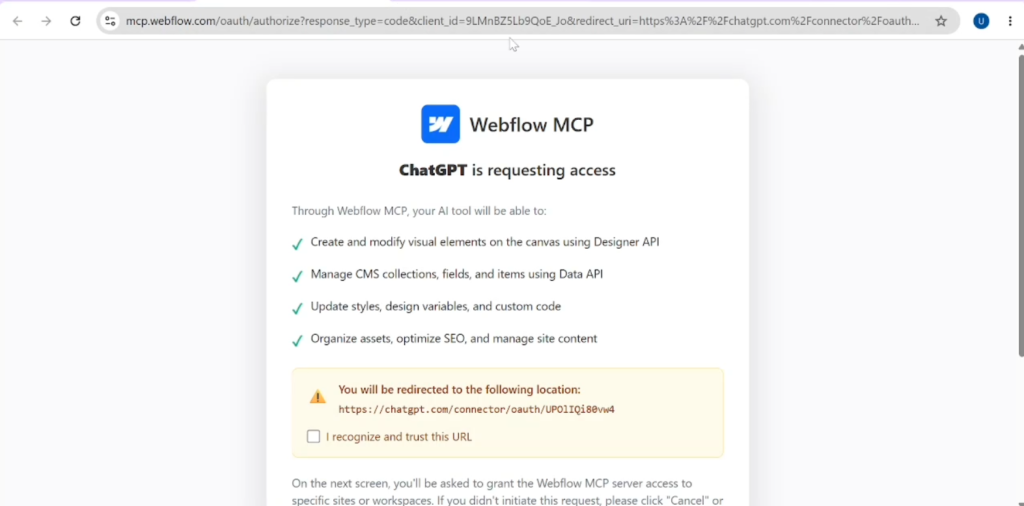
- You’ll be asked to confirm the connection. Scroll down, check I recognize and trust this URL, and click Continue.
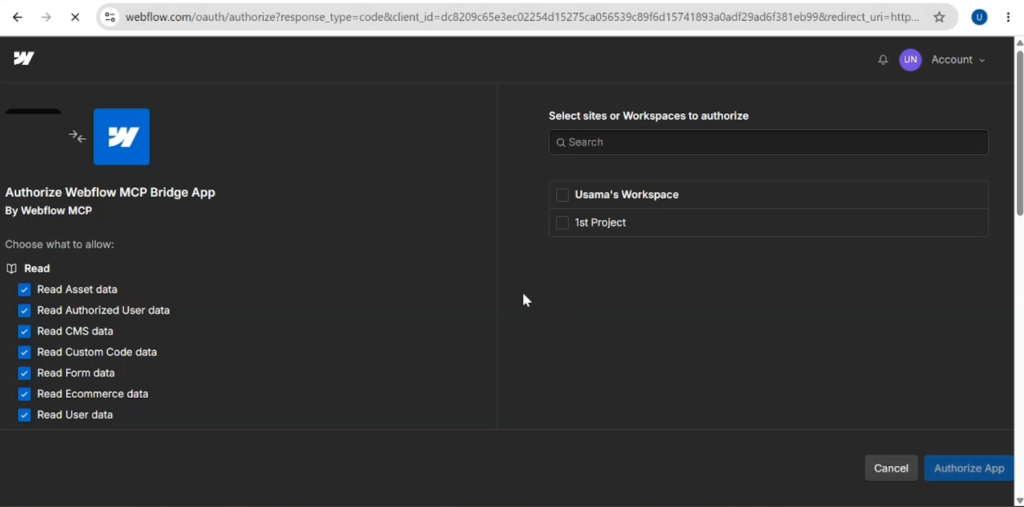
- ChatGPT will then ask you to select which Webflow site you want to connect. Choose the blank project you created in Step 1.
- Click Authorize App.
Give it a moment to finish linking. Once done, your ChatGPT account will be fully connected to your Webflow site.
Step 3: Generate a Design Using a Prompt
With the connection in place, you can start creating.
- Open a new chat in ChatGPT.
- Click the plus icon and select Webflow (or search for it if it isn’t visible right away).
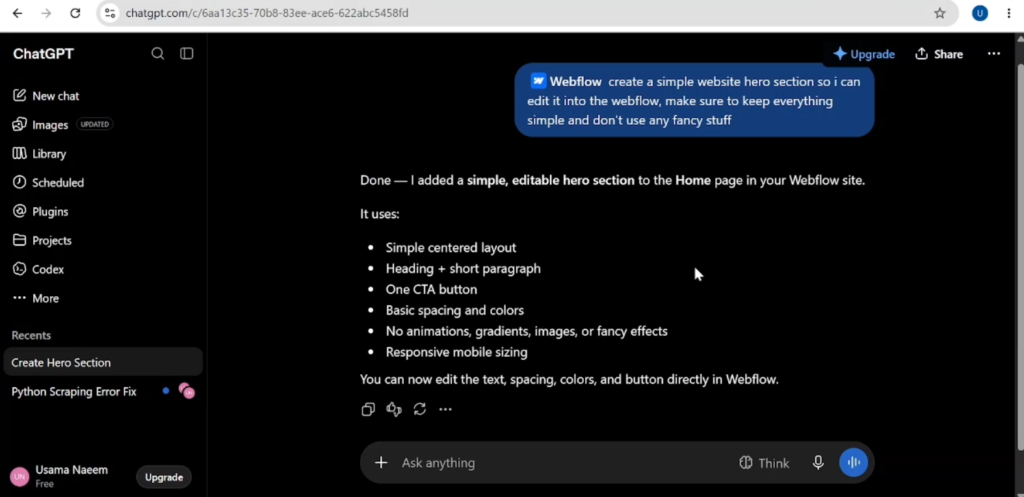
- Type a prompt describing what you want. For example: “Create a simple hero section for a website, nothing too fancy, keep it clean.”
- Open the file it generates when prompted.
Also read: How to Connect ChatGPT with Figma.
ChatGPT will process the request and either build the design or ask for extra details. It may also request permission to open a live editing connection between Webflow and ChatGPT — click Allow Once to continue. You might be asked for this permission a couple of times before the connection is fully live.
Step 4: Review and Edit the Design in Webflow
Once ChatGPT finishes generating the section, it will automatically appear on your Webflow site’s homepage.
From here, you’re in full control:
- Click any element to select it and make changes.
- Adjust colors directly from the design panel.
- Edit text content.
- Use any of Webflow’s built-in styling options to customize further.
This is where the real value of the integration shows: ChatGPT handles the heavy lifting of generating a starting design, and Webflow gives you the flexibility to polish it exactly the way you want.
Tips for Better Results
The more detailed your prompt, the better the design ChatGPT produces. Instead of a vague request, describe the layout, tone, and purpose of the section you need. A detailed prompt gives ChatGPT enough context to create something closer to what you actually have in mind, which means less manual cleanup afterward inside Webflow.
Final Thoughts
Connecting ChatGPT with Webflow is a simple way to speed up your design process. You get an AI-generated starting point in seconds, then use Webflow’s editor to refine it into a finished, professional-looking website. Whether you’re building a landing page, a portfolio, or a full business site, this workflow can save you a significant amount of time.
FAQs
Can I connect ChatGPT and Webflow using free accounts? Yes. Both the ChatGPT plugin connection and a basic Webflow project can be set up using free versions of each platform.
Do I need an existing Webflow site to use this integration? You need at least a blank project created in Webflow before connecting it to ChatGPT, since ChatGPT needs a site to inject the design into.
Why does ChatGPT ask for permission multiple times? ChatGPT requests permission to establish a live editing connection with Webflow. This can prompt more than once while the two platforms sync, which is normal.
Can I edit the design ChatGPT creates? Yes. Once the design appears in Webflow, you can click on any element to change colors, text, buttons, and layout using Webflow’s standard editing tools.
What kind of designs can ChatGPT generate for Webflow? You can prompt ChatGPT to create various sections, such as hero sections, layouts, or specific design elements. The more detailed your prompt, the more accurate the result will be.