Ever designed something in ChatGPT and wished you could tweak it further without starting from scratch? Good news — you can. ChatGPT now lets you link Canva with ChatGPT directly, so any design it generates can be opened and edited inside Canva in just a few clicks.
In this guide, I’ll walk you through exactly how to connect ChatGPT with Canva, create a design using ChatGPT, and then edit that same design in Canva — all without spending a single rupee, since both platforms are free to use for this feature.
Get 20% off on your first hosting plan.
Can I Connect Canva to ChatGPT?
Yes, absolutely. OpenAI and Canva have an official integration that lets you link your Canva account with your ChatGPT account. Once connected, ChatGPT can generate designs — like thumbnails, posters, or social media graphics — and hand them off to Canva for full editing access. This means you get the speed of AI-generated design combined with the flexibility of Canva’s editor.
How Do I Connect ChatGPT to Canva?
Here’s the exact process I used, step by step:
Step 1: Log Into Both Accounts
Before doing anything else, make sure you’re logged into your Canva account and your ChatGPT account in your browser.
Step 2: Find the Canva Plugin in ChatGPT
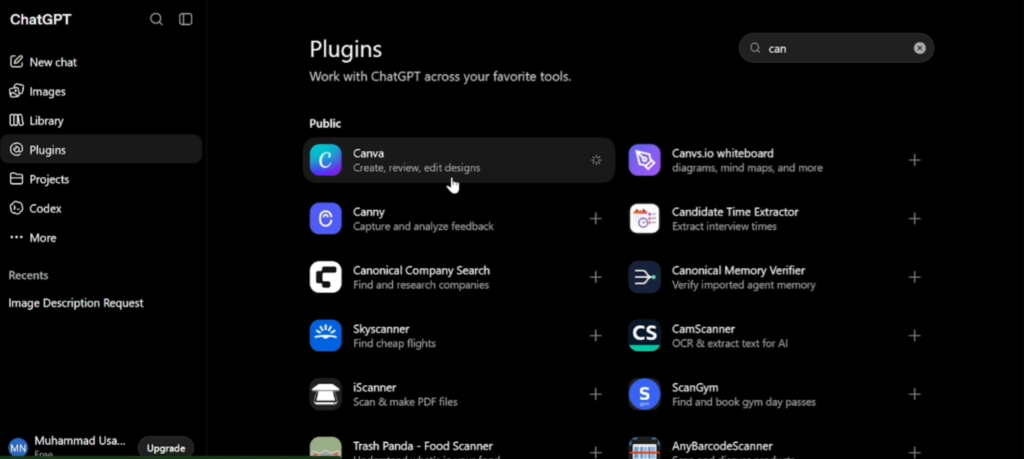
Inside your ChatGPT account, go to the plugins or apps section. You can either scroll through the list or simply search for “Canva” — it should appear right away.
Step 3: Enable the Canva Connection
Click the plus icon next to Canva. This will prompt you to log into your Canva account (if you aren’t already). Scroll down and click Allow to grant permission.
Step 4: Wait for Authorization
Give it a moment to process. Once you see a success message, your Canva account is officially connected to your ChatGPT account.
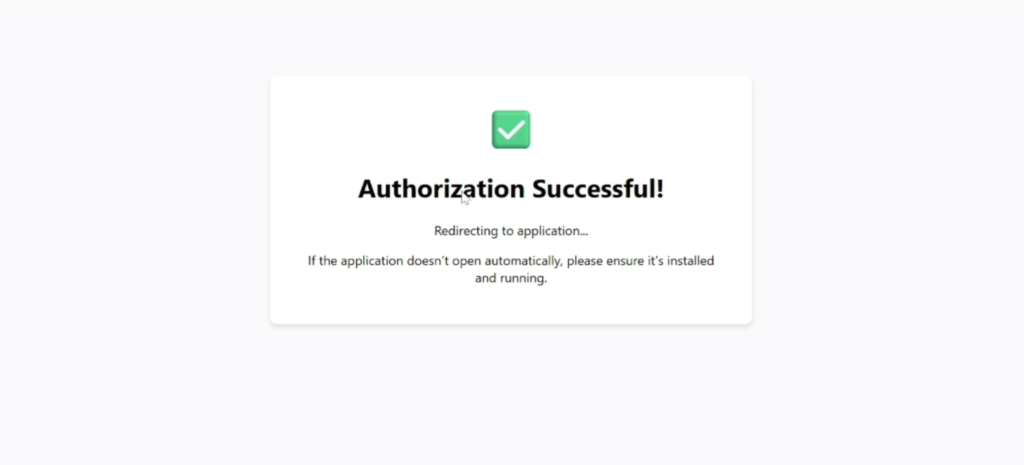
That’s it — you’ve now linked Canva with ChatGPT, and you’re ready to start creating.
How to Create a Design in ChatGPT and Edit It in Canva
Now that the two accounts are connected, here’s how to actually use this integration:
- Start a new chat in ChatGPT and ask it to create something — for example, a thumbnail for your YouTube video.
- Wait for ChatGPT to generate the design. This usually only takes a few seconds.
- Once the design appears, click the chat box options, then select Add/Generate, and choose Canva from the list.
- Type a prompt like “make it editable in Canva.”
- ChatGPT will ask you to confirm access again — click Allow once.
- It will now begin transforming your design into an editable Canva layout. You’ll see a message saying the design is being generated, which can take up to 30 seconds.
- Once it’s ready, click Customize this design. This will open the design directly inside Canva.
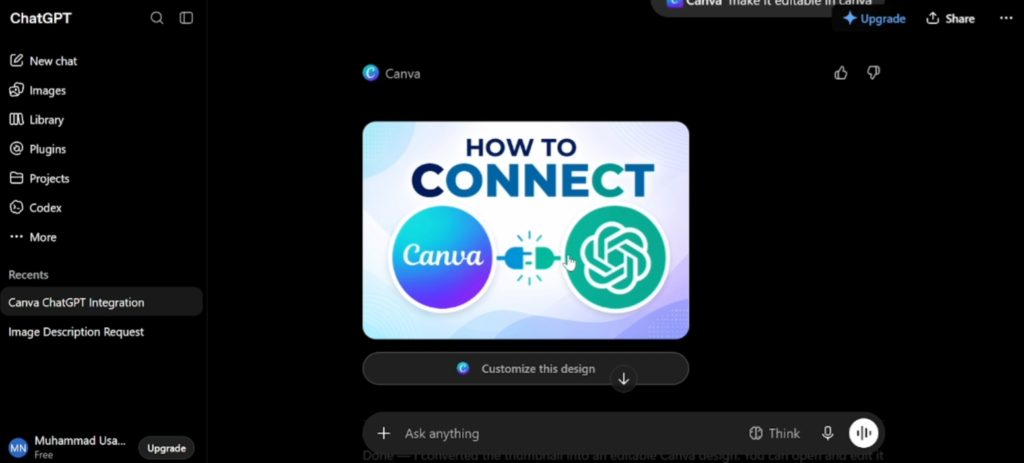
At this point, everything in the design is fully clickable and editable. You can change the text, move icons and logos, swap out images, update the background — basically anything you’d normally edit in Canva, right there.
Also read: How to Connect Canva with Google Gemini and edit AI Images instantly.
How to Share a Canva Link with ChatGPT
If you already have a design in Canva and want ChatGPT to help you edit or build on it, the same connected app lets ChatGPT pull up your Canva files once the two accounts are linked. You don’t need to manually copy-paste links back and forth — once authorized, ChatGPT can access and send designs to Canva directly through the plugin.
Is This Feature Free?
Yes, and this is one of the best parts. Neither ChatGPT nor Canva charges you extra to use this integration:
- Canva offers a free trial with no upfront cost.
- ChatGPT’s free plan supports this plugin connection as well.
So you don’t need any premium subscription to link Canva with ChatGPT and start editing your AI-generated designs.
Why Connect ChatGPT with Canva?
If you create content regularly — YouTube thumbnails, Instagram posts, blog graphics — this integration saves a lot of back-and-forth. Instead of designing from a blank canvas, you get ChatGPT to generate a starting point instantly, then fine-tune every detail inside Canva’s proper design editor. It’s a great workflow for creators who want speed without giving up creative control.
FAQs
Does ChatGPT connect to Canva?
Yes, ChatGPT has a built-in Canva plugin/app that allows you to connect your Canva account directly within ChatGPT, letting you generate and edit designs seamlessly.
How do I connect ChatGPT to Canva?
Log into both your ChatGPT and Canva accounts, go to the plugins section in ChatGPT, search for Canva, click the plus icon, and allow access. Once authorized, your accounts are connected.
Can I connect Canva to ChatGPT for free?
Yes. Both the ChatGPT free plan and Canva’s free trial support this connection, so there’s no cost involved to link the two accounts.
How do I share a Canva link with ChatGPT?
Once your Canva account is connected to ChatGPT through the plugin, you can ask ChatGPT to generate a design and make it editable in Canva, or bring in existing Canva designs, without manually sharing links.
Do I need a paid Canva or ChatGPT subscription for this integration?
No. The core connection and editing features work fine on the free plans of both platforms. Paid plans simply unlock additional design or AI features, but they aren’t required for linking the two accounts.
Can I edit ChatGPT-generated designs in Canva after the initial creation?
Yes. Once a design is converted into an editable Canva layout, you can go back and make changes anytime — text, images, icons, backgrounds — just like any other Canva project.