If you’ve ever wished you could ask an AI to whip up a design and then fine-tune it yourself without switching between five different tabs, you’re going to love this. In this guide, I’ll walk you through exactly how to connect your Claude account with Canva so you can generate designs with Claude and edit them directly inside Canva — all without paying a single rupee or dollar.
And yes, this works completely on the free plans of both platforms. I’m using a free Claude account and a free Canva account, no Claude Pro subscription and no Canva Pro plan required.
Why Connect Claude with Canva?
Canva already has its own built-in AI tools, but Claude brings something different to the table: strong reasoning and natural conversation. Instead of clicking through menus to describe what you want, you can simply chat with Claude, ask it to create a design chart, a social media graphic, or a presentation slide, and then open that exact design in Canva to polish it however you like.
This combo is especially useful for content creators, freelancers, and small business owners who want quick, editable designs without spending hours in a design tool.
Get 20% discount on your website hosting plan.
Step-by-Step: How to Link Your Claude Account to Canva
Step 1: Log Into Both Accounts
Start by logging into your Claude account and your Canva account. You don’t need any paid plan for either. Both platforms offer a free version, and that’s all you need for this integration.
Step 2: Open Claude Settings
Click on your profile name in Claude, then head over to Settings.
Step 3: Find the Connectors Section
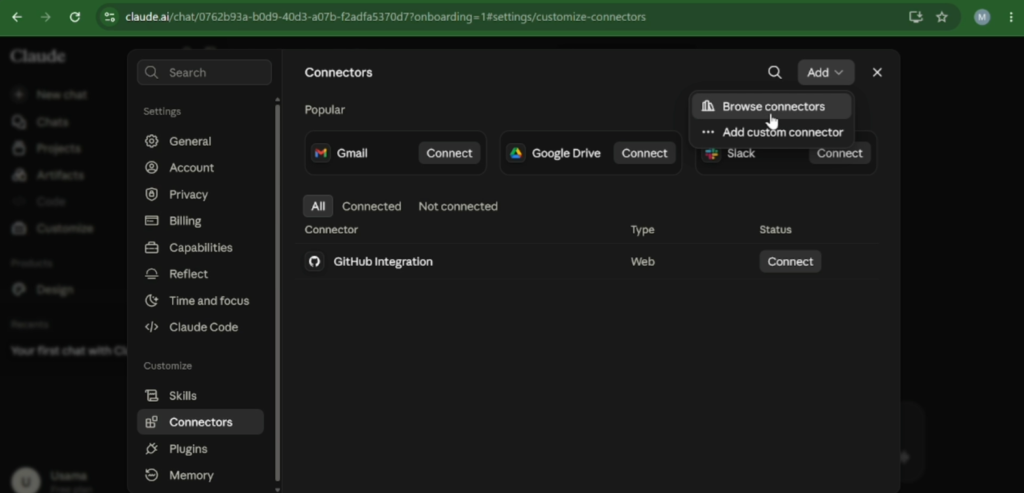
Inside Settings, look for the Connectors section (sometimes listed under Customize, depending on your interface). Click on it, then select Add, followed by Browse Connectors.
Step 4: Search for Canva
You’ll see a long list of available apps and integrations here. You can either scroll to find Canva or simply type “Canva” into the search bar to jump straight to it.
Step 5: Connect Your Canva Account
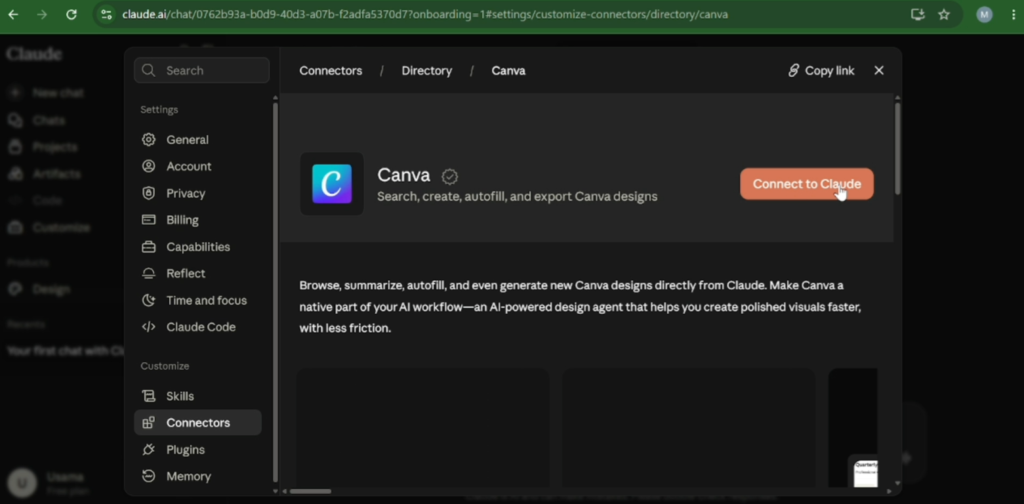
Click on the Canva connector, and you’ll see a button that says Connect to Claude. Click it, and Claude will ask you to grant a few permissions. Scroll down and hit Allow.
Once you see the “Authorization successful” message, your Canva account is officially linked to your Claude account.
Step 6: Verify the Connection
Head back to the connectors directory, and you’ll notice a green checkmark next to Canva, confirming it’s connected. You can also open the connector settings anytime to review or adjust the permissions Claude has for your Canva account.
Also read: How to Connect ChatGPT with Canva
How to Create a Design in Claude and Edit It in Canva
Now for the fun part. Here’s how to actually put this connection to use:
- Start a new chat in Claude.
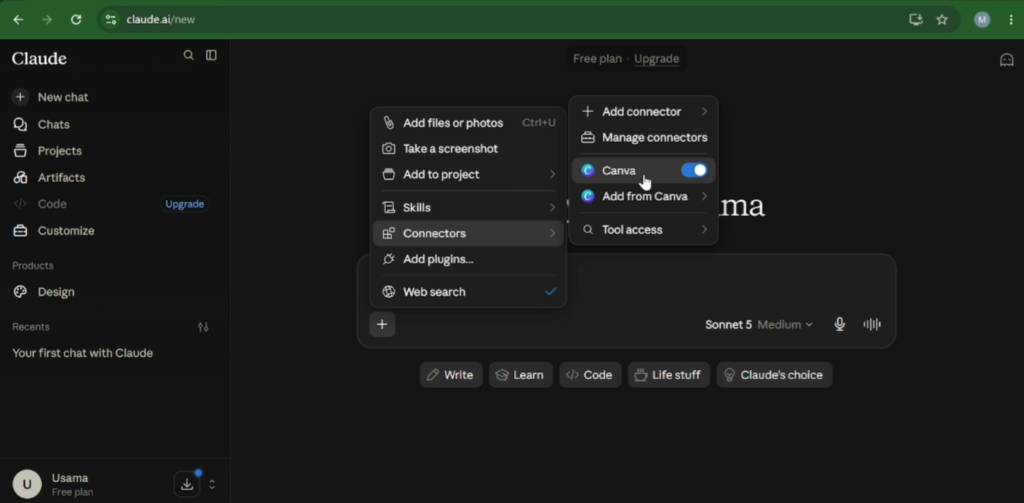
- Click the plus icon, go to connectors, and make sure the Canva toggle is switched on for that conversation. This step matters — without enabling it per chat, Claude won’t be able to reach your Canva account.
- Ask Claude to create a design. For example, you could ask for a design chart about “how to make money in 2026.”
- Claude will start generating the design, which usually takes under a minute.
- Once it’s ready, you’ll see a few design options. Pick the one you like.
- Click Open in Canva, then Open Link, and the design will load directly inside your Canva editor.
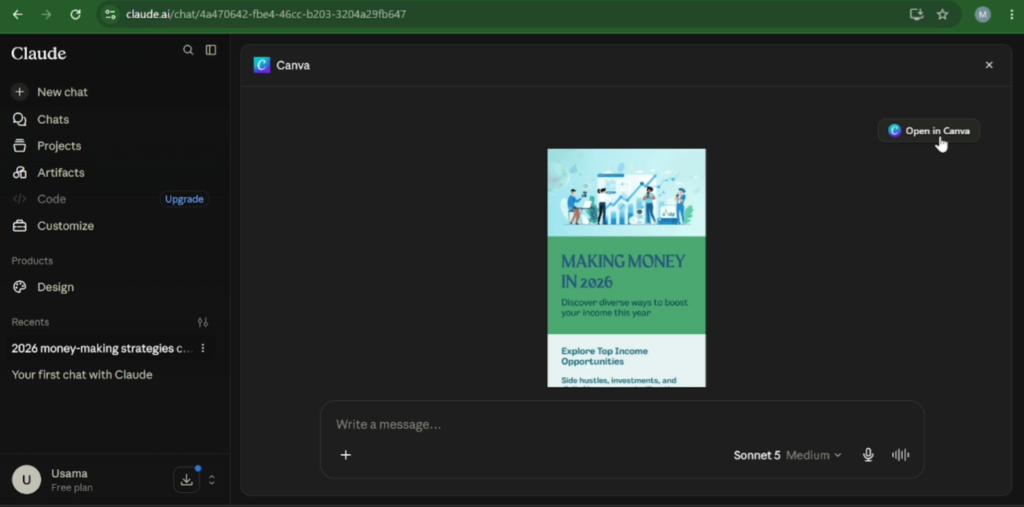
From there, you’re free to tweak the text, swap images, change colors, or redesign the layout however you want, exactly like editing any other Canva project.
Final Thoughts
That’s really all there is to it. Connecting Claude with Canva takes just a couple of minutes, and it completely changes how you approach design work. Instead of starting from a blank canvas, you get an AI-generated starting point that you can refine and make your own inside Canva, all on free plans.
If this guide helped you out, consider subscribing to the channel, sharing it with a friend, and following along on Facebook, TikTok, or Instagram for more tutorials like this one.
Frequently Asked Questions
Do I need a paid Claude or Canva plan to use this integration?
No. Both the Claude connector feature and the Canva AI Connector work on free plans. You don’t need Claude Pro or Canva Pro to connect the two accounts.
Where do I find the Connectors option in Claude?
Click your profile name in the bottom corner, go to Settings, and look for Connectors (sometimes shown under Customize). From there, browse or search for Canva.
Why can’t Claude access my Canva account even after connecting it?
Make sure the Canva connector is toggled on for the specific chat you’re working in. Connecting your account is a one-time step, but you still need to enable it per conversation.
Can I edit the AI-generated design after opening it in Canva?
Yes. Once the design opens in Canva through the “Open in Canva” link, you can edit text, images, colors, and layout just like any normal Canva design.
What kind of designs can Claude create for Canva?
You can ask Claude to generate charts, social media graphics, presentation slides, and other visual content based on a simple text prompt.
Is my data safe when I connect Canva to Claude?
Claude only accesses the permissions you explicitly approve during setup, and you can review or revoke these permissions anytime from the Connectors section in Settings.