Want to edit your Webflow site without opening Webflow? You can now connect Gemini to Webflow — Google Gemini has an official Webflow connector, launched on 15 October 2026, that lets you create pages, manage your CMS and check your site’s performance right from a Gemini chat.
No code, no API key, no extra app to install. You connect Webflow once in Gemini’s settings, type @Webflow, and describe what you want in plain words.
In this guide you will learn how to connect Gemini to Webflow step by step, what you can ask it to do, and the limits you should know before you start — including one important one: for now, the connector is only available in the United States, in English, with a personal Google account.
What is the Gemini + Webflow connection?
It is Webflow’s official connected app inside the Google Gemini app, built on Webflow’s MCP (Model Context Protocol) server. In plain words: Gemini talks to your Webflow site through an official bridge, so your words become real actions on the site — a new page, a CMS item, a design change — instead of just advice in a chat.
It is the same idea as the ChatGPT and Claude connections to Webflow, now with Gemini as the third option. If you already read those guides, the pattern will feel familiar: connect once, then work from the chat.
Before you start — check you qualify
This is the part most guides skip, and it matters, because the connector is still rolling out. You need all of these:
- A personal Google account. The Webflow connector is not available for work or school Google accounts yet.
- To be 18 or over and based in the US. Google only offers the Webflow connector in the United States, in English, for now. Google Gemini Enterprise support is coming soon, but it is not here yet.
- Keep Activity turned on in Gemini. Connected apps do not work in Gemini when this setting is off — if the Webflow toggle is missing, check this first.
- A Webflow account with a site role other than Reviewer. The MCP server respects your existing role permissions, so you can only do in Gemini what your Webflow role already lets you do.
- Any Webflow Site plan, including the free Starter plan. The MCP server is available on all Site plans.
If you are outside the US — for example in Pakistan — you will not see the Webflow connector in Gemini yet. That is a rollout limit, not a mistake in your settings, and the honest advice is to wait for Google to expand it rather than try workarounds that ask for your login.
Is it free? Yes — Webflow says the connected app is free to install and does not consume Webflow AI credits at this time. What you do in Gemini counts toward your Gemini plan, as with any Gemini chat.
How to connect Gemini to Webflow (step by step)
These steps follow Webflow’s own Help Center page for connecting Gemini to Webflow.
Step 1: Open Gemini — Go to gemini.google.com in your browser and sign in with your personal Google account.
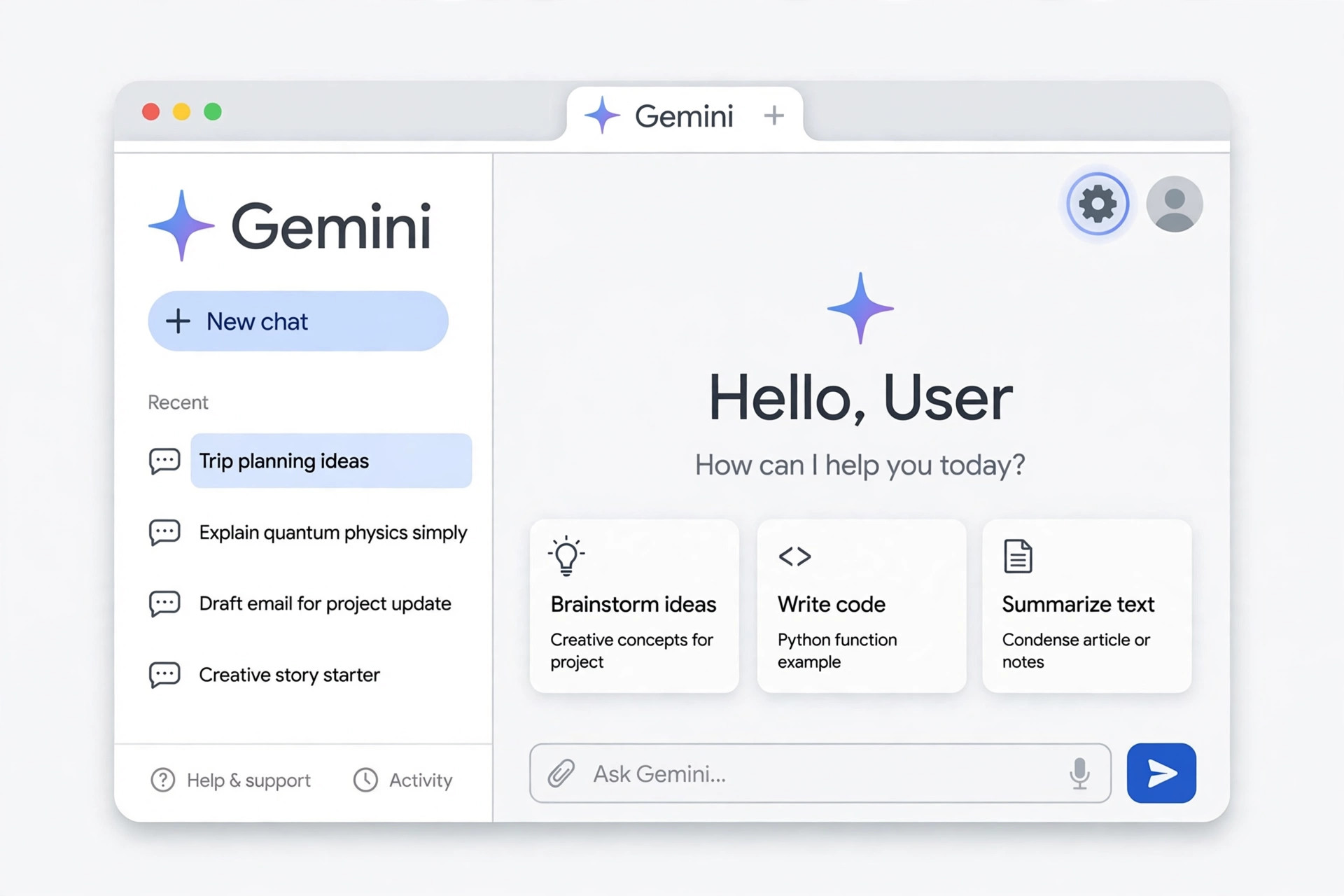
Step 2: Open Settings, then Connected Apps — Click the Settings icon next to your account name, then click Connected Apps.
Step 3: Turn on the Webflow toggle — Under Other, find Webflow and turn on its toggle.
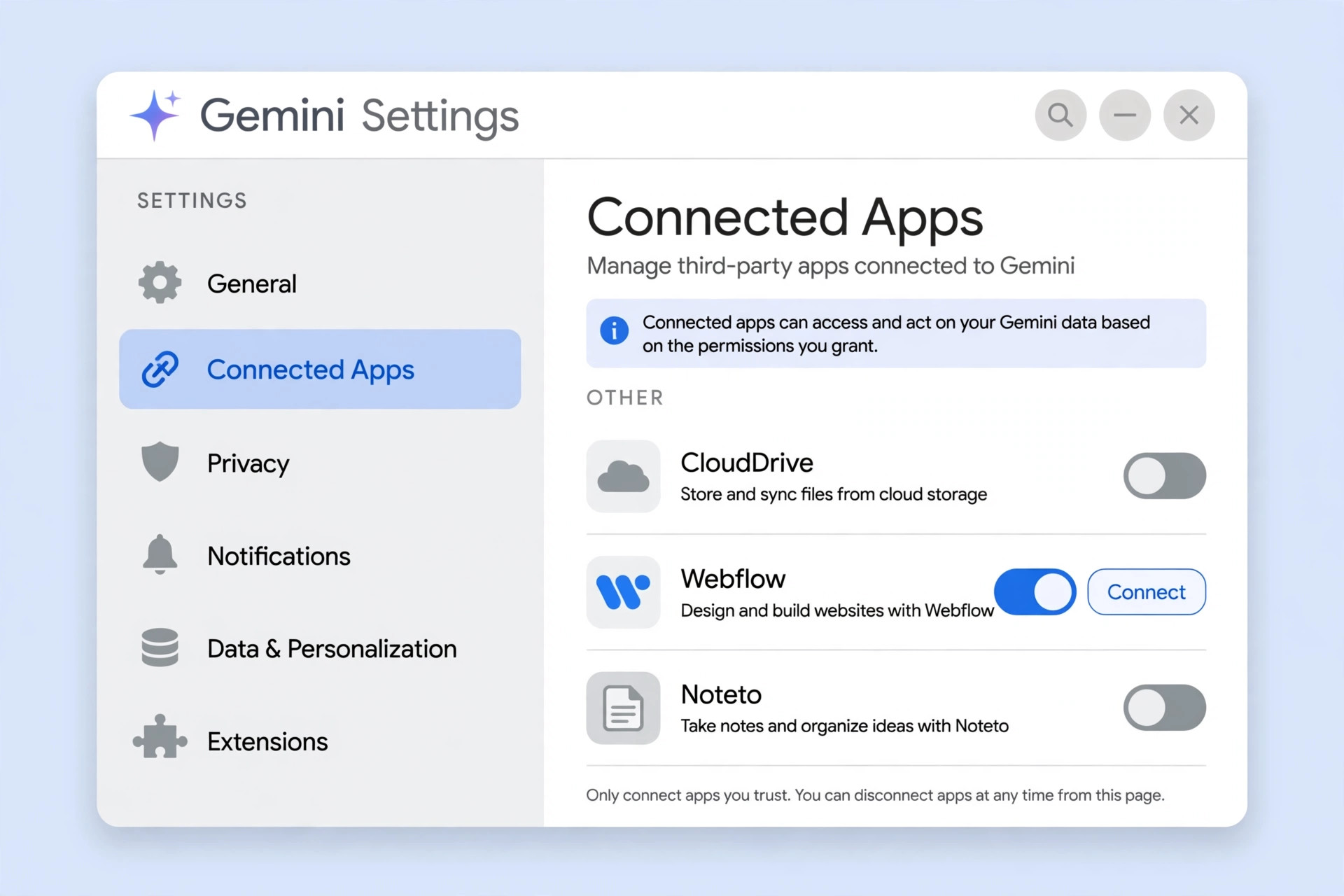
Step 4: Click Connect, then Agree and continue — Click Connect, then click Agree and continue on the permission screen. Read what Gemini is being allowed to do — it will be able to read and change the sites you choose in the next step.
Step 5: Confirm the URL and authorize — A new tab opens. Check “I recognize and trust this URL”, click Continue, then choose the sites and/or Workspaces you want to give Gemini access to, and click Authorize App.
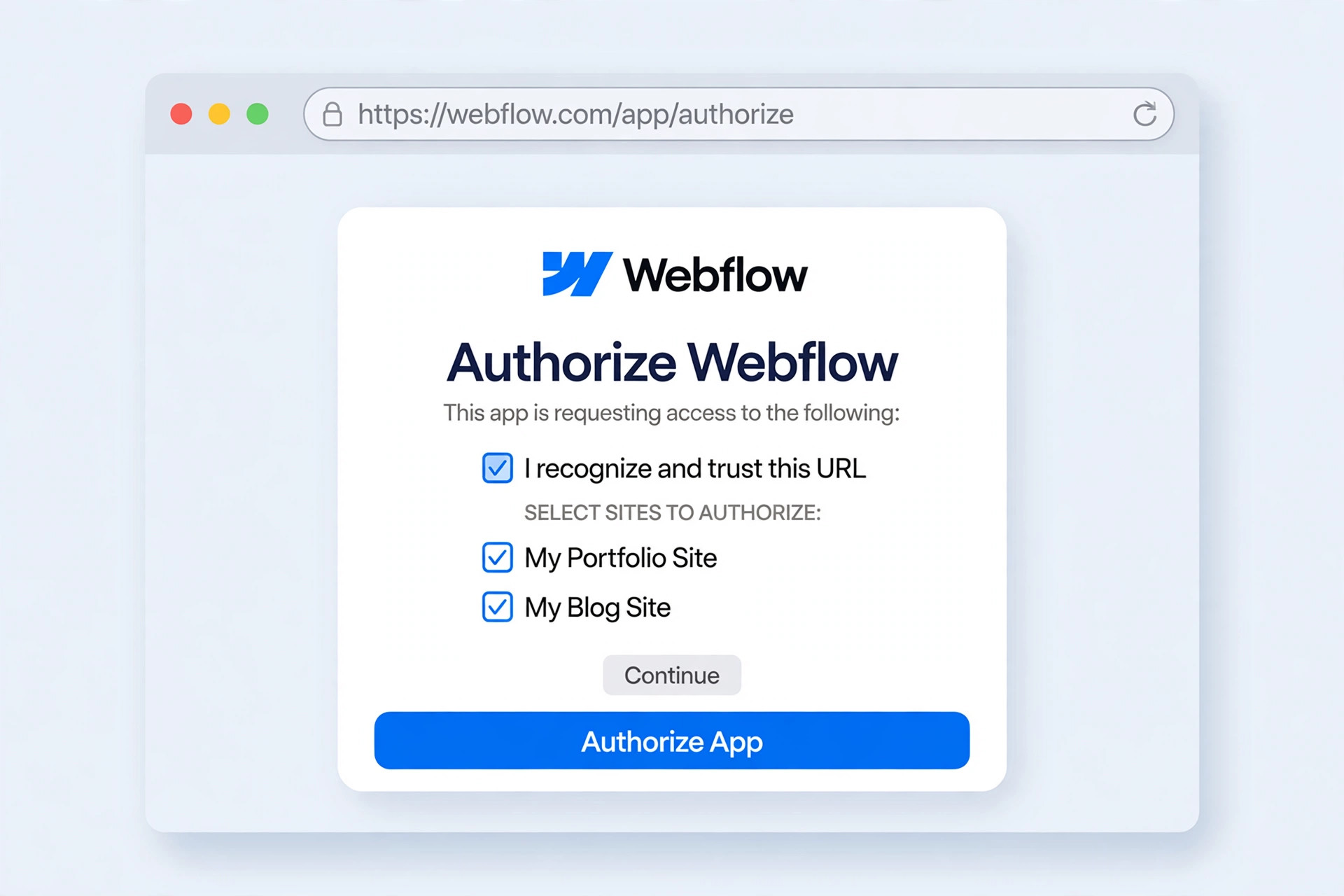
The tab closes when you are done, and Webflow is ready to use in Gemini.
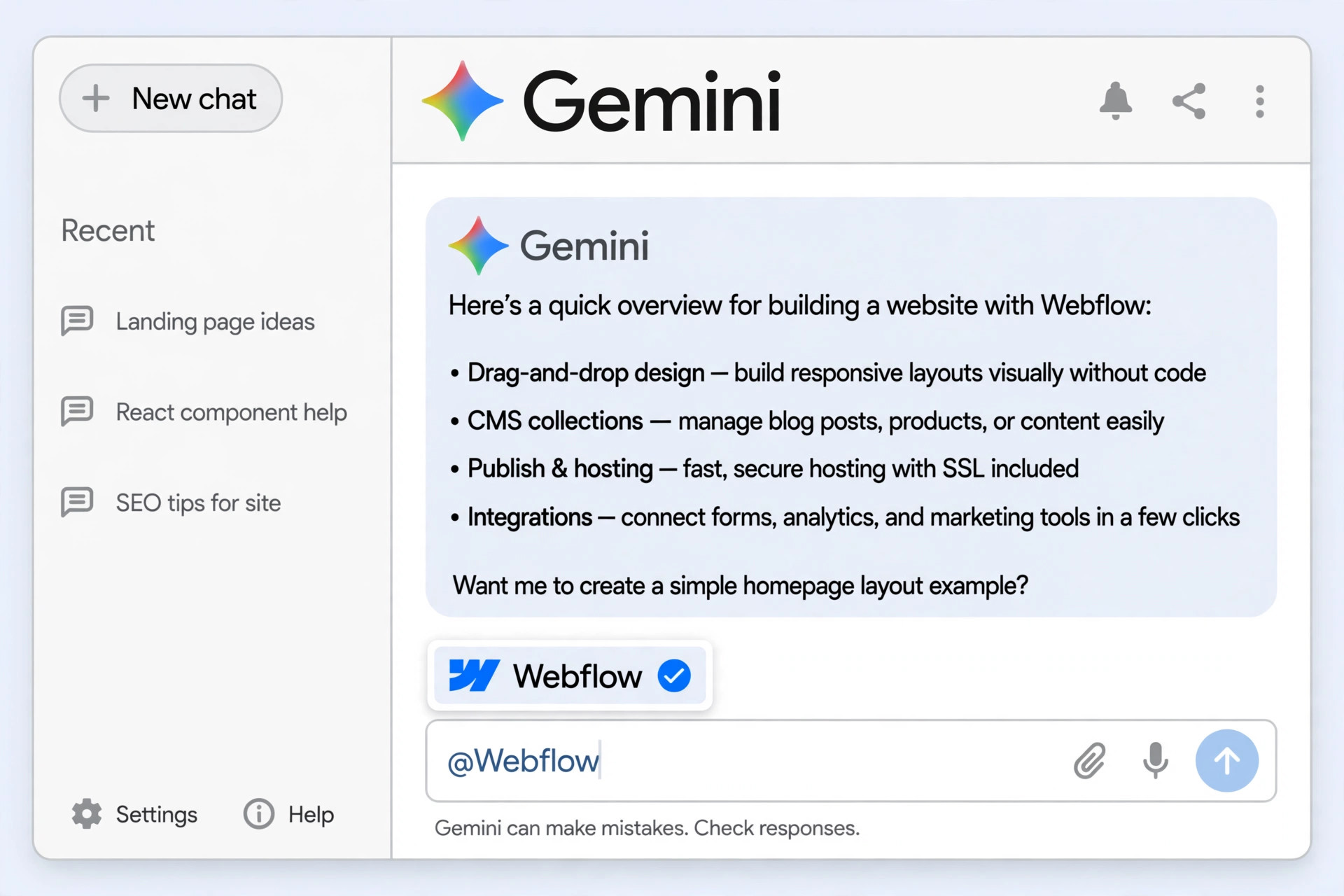
Shortcut: you can also connect from a chat — type @Webflow, or ask Gemini to do something with your Webflow site, and it will prompt you to connect.
Step 6: Start with @Webflow — In a new Gemini chat, start your prompt with @Webflow and select Webflow from the list, so Gemini knows to use the connector. Without the @Webflow mention, Gemini may just answer from general knowledge instead of touching your site.
What can you ask Gemini to do in Webflow?
Once connected, try prompts like these — be specific about the site and the page:
- “Create a new landing page for my spring sale, using my brand colours and my existing hero component.”
- “Add a new post to my Blog Collection with this title and text, then publish it.”
- “Audit my homepage for broken links and accessibility issues and list what to fix.”
- “Update the price in my pricing CMS collection from $49 to $59 on all items.”
- “Summarize my site’s traffic this month — top pages and where visitors come from.”
Behind the scenes Gemini can create and edit pages, build layouts, manage styles and components, set up and restructure CMS collections and update items in bulk, manage SEO and AEO, and read your Analyze, Optimize and AEO analytics data. Note that the analytics reading needs the Analyze add-on or Optimize for that data.
What it cannot do (yet)
- Canvas work needs the Bridge App. Actions that depend on what is selected or open on the Webflow canvas still need you to open your site and launch the Webflow MCP Bridge App.
- Not every Webflow action is covered. The MCP server cannot do everything the Webflow editor can do yet. Some tasks still need to be done directly in Webflow.
- It can read analytics, not change them. It can summarize traffic and test results, but it cannot change your analytics data.
- It only sees what you authorize. When you connect, choose only the sites or Workspaces you are actively working on. You can limit access — and you should.
How to disconnect Gemini from Webflow
If you want to stop it, go to Gemini Settings > Connected Apps, click Learn more on the Webflow card, then click Unlink. Gemini loses access to your Webflow sites at once.
Gemini vs ChatGPT vs Claude for Webflow — which one?
All three now connect to Webflow through the same MCP server, so the difference is which AI you already use and what it is good at. ChatGPT and Claude have been connected longer; Gemini is the newest, launched 15 October 2026, and its advantage is that it lives inside the Google account many people already use for Gmail, Docs and Drive. If you already use Gemini for Gmail — our Gemini in Gmail guide covers that — adding Webflow keeps one more tool in the same chat. If you are outside the US, though, ChatGPT or Claude is the working option today, because Gemini’s Webflow connector is US-only for now.
Frequently asked questions
Is connecting Gemini to Webflow free? — Yes. The Webflow connector is free to install and does not consume Webflow AI credits at this time, and the MCP server works on all Site plans including the free Starter plan. Your Gemini usage counts toward your Gemini plan.
Do I need a paid Webflow plan? — No. The MCP server is available on all Site plans, including the free Starter plan. Some analytics features need the Analyze add-on or Optimize.
Can I use it with a work or school Google account? — Not yet. The Webflow connector needs a personal Google account, and Google Gemini Enterprise support is coming soon.
Why can’t I see Webflow in Gemini’s Connected Apps? — The most likely reasons are: you are not in the US, you are not using a personal Google account, you are under 18, or Keep Activity is turned off in Gemini. Check those in that order — Keep Activity off silently disables connected apps.
Does Gemini publish changes to my live site? — It can publish your site or individual pages when you ask it to, so check its work before you say “publish” — ask it to draft first, review the change, then publish.
How do I disconnect it? — Gemini Settings > Connected Apps > Learn more on the Webflow card > Unlink.
Bottom line
Connecting Gemini to Webflow takes about two minutes: Gemini Settings > Connected Apps > Webflow > Connect > Agree and continue > authorize your sites > start your prompt with @Webflow. From there you can build pages, manage your CMS and check performance without leaving the chat — as long as you are in the US, on a personal Google account, with Keep Activity on. If you are outside the US, the connector is not available to you yet, and the ChatGPT or Claude route is the one that works today.