
Maybe you are moving your store to another platform, rebranding with a new domain, or simply cleaning up an old address you no longer use. Whatever the reason, removing a custom domain from Shopify only takes a few minutes — but there is one step that trips almost everyone up: you cannot delete a domain while it is still set as your store’s primary domain.
In this guide, you will learn how to remove a domain from Shopify the right way, step by step: how to change your primary domain first, how to delete the custom domain and its www redirect, and what to do with the domain afterwards. It is based on our video walkthrough, checked against Shopify’s current Help Center pages, and expanded with the details the video does not cover — including what happens if your domain was bought through Shopify.
Before you start: know which kind of domain you have
Not every domain in your Shopify admin can be removed the same way, so check which kind yours is before you touch anything. Open Settings > Domains and look at the list. You will see one of three types:
- Third-party domain — a domain you bought from GoDaddy, Namecheap, Hostinger, or another registrar and connected to Shopify yourself. This is the kind you can delete from your Shopify admin in a few clicks, and it is what this guide covers.
- Shopify-managed domain — a domain you bought directly through Shopify. You cannot delete this one from the admin. You can only transfer it to another provider or turn off auto-renewal and let it expire (see the section below).
- Your myshopify.com domain — the free address Shopify gave your store when you signed up, like your-store.myshopify.com. This one can never be removed or transferred. It is your store’s permanent identifier: you log in with it, Shopify Support identifies your store by it, and most apps use it to stay connected. After you remove your custom domain, this is the address your store falls back to.
If you are not sure which type yours is, click the domain name on the Domains page — the details page shows where it is managed.
What you need before you start
A quick checklist, so you do not get stuck halfway through:
- Admin access to your Shopify store. Only the store owner or a staff member with domain permissions can change domains.
- A replacement primary domain in mind. If the domain you want to remove is your primary domain, Shopify will make you pick a new primary first. In most cases that will simply be your free your-store.myshopify.com address.
- Access to your domain registrar account (GoDaddy, Namecheap, Hostinger, or wherever you bought the domain). Removing the domain from Shopify does not cancel its registration — you will need your registrar account to point it somewhere else or turn off auto-renewal.
- A note of anything tied to the domain. If you set up email forwarding on the domain or pointed other services at it, sort those out first — removing the domain can break them.
How to remove a domain from Shopify, step by step
Step 1: Open Settings, then Domains
Log in to your Shopify admin. In the bottom-left corner, click Settings, then click Domains. This page lists every domain connected to your store, with the primary domain marked at the top.

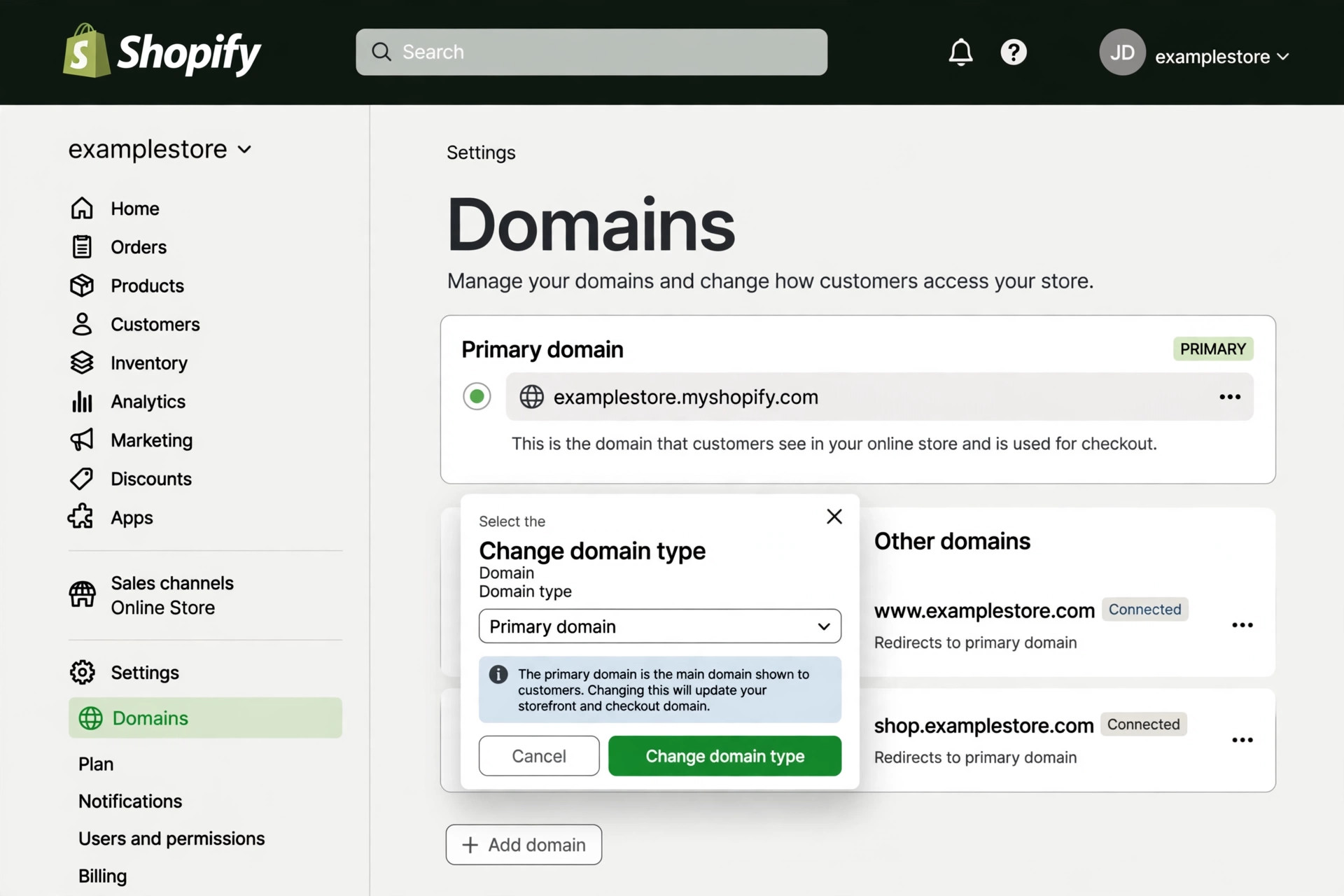
Step 2: Change your primary domain first (if the domain you want to remove is primary)
This is the step most people miss. Shopify will not let you delete the domain your store is currently using as its primary address — the Delete domain button simply will not be there until you change it.
- On the Domains page, click the domain you want to make the new primary. If you are going back to Shopify’s free address, click your your-store.myshopify.com domain.
- In the Type row, click Change.
- In the Change domain type dialog, select Primary domain.
- Click Change domain type to save.
Your old custom domain now becomes a redirect domain: anyone who visits it is sent to your new primary domain, and it stays connected until you delete it in the next step. If the domain you want to remove was never your primary domain, you can skip this step entirely.
Step 3: Delete the domain
Now the removal itself:
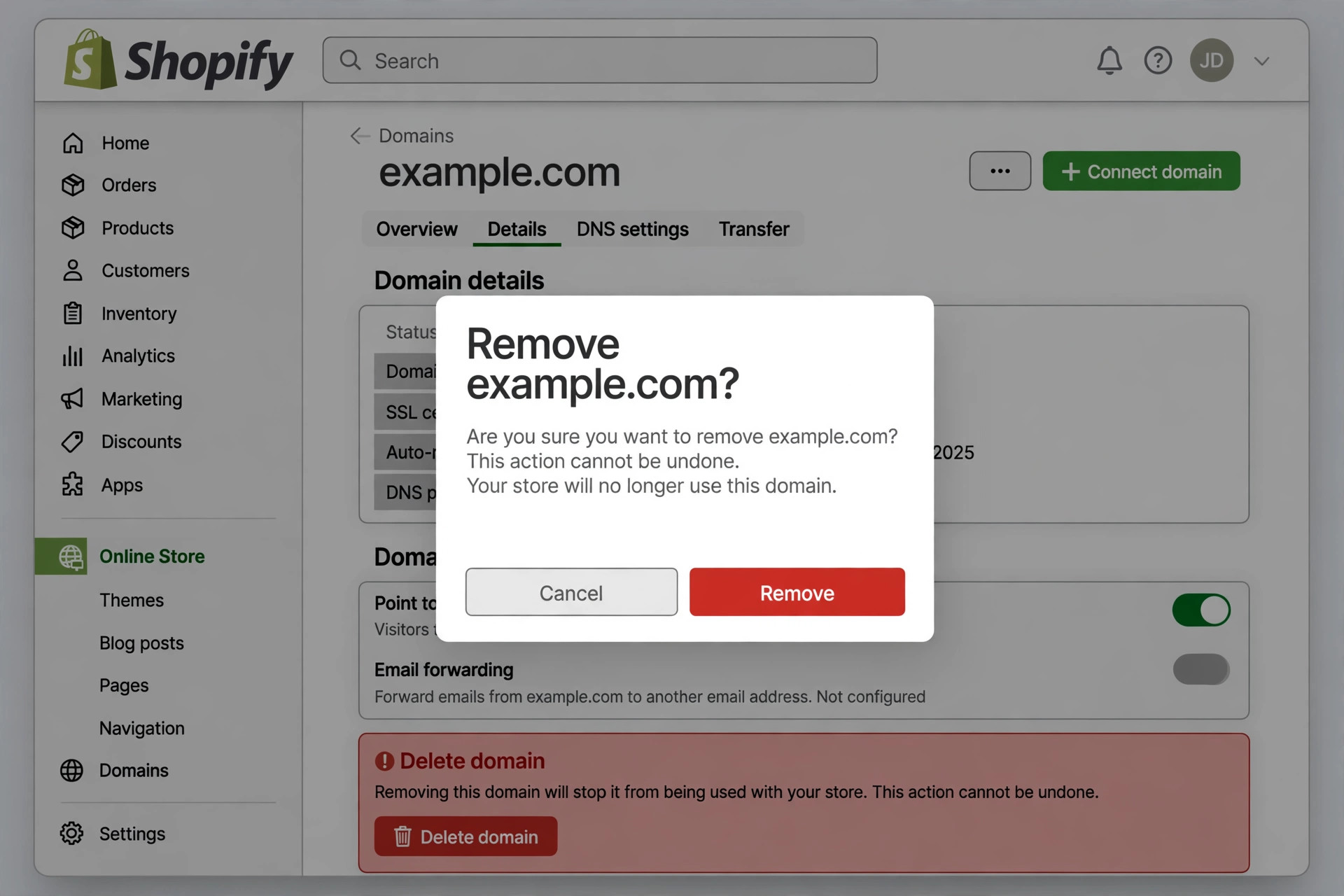
- From your Shopify admin, go to Settings > Domains.
- Click the name of the domain you want to remove.
- Click Delete domain.
- In the confirmation dialog, click Remove to confirm.
That is it — the domain is immediately disconnected from your store. Your products, orders, and settings are untouched; only the address is gone.
Step 4: Delete the redirect (www) version too
In your domain list you may see two versions of your custom domain: the root domain (example.com) and the www version (www.example.com). Shopify treats the www version as a redirect to your primary domain, so it appears as a separate entry.
If you are removing the domain completely, delete this redirect entry as well — click it, then Delete domain, then confirm. Otherwise the www address stays connected to your store even after the main domain is gone, which is rarely what you want.
Step 5: Check your store loads on the myshopify.com address
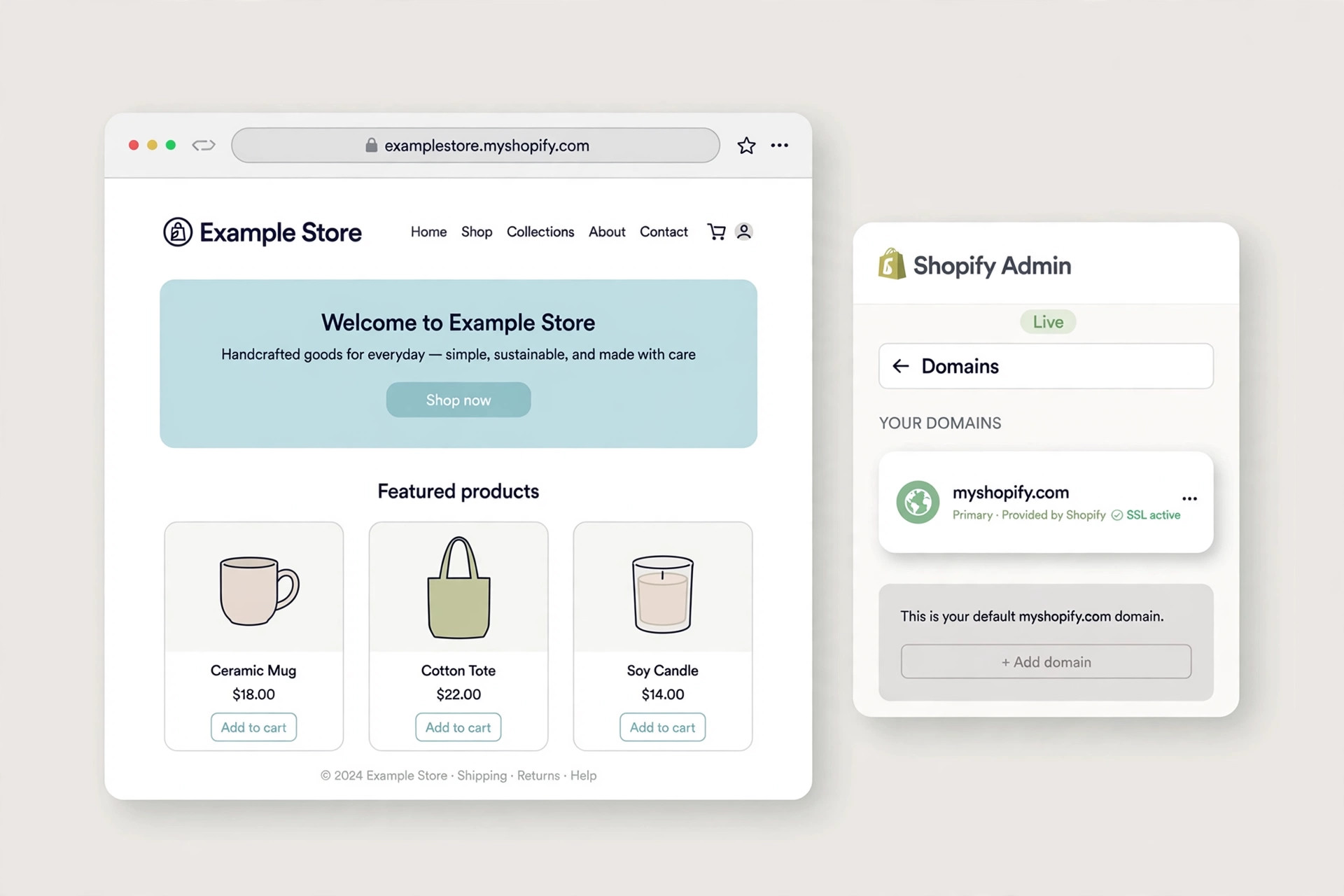
Open a new browser tab and type your your-store.myshopify.com address. Your store should load exactly as before, just on the temporary address. Back in the admin, the Domains page should now list only your myshopify.com domain.
Removing a domain on the Shopify mobile app
If you manage your store from your phone, the same removal works in the Shopify app:
- From the Shopify app, tap the menu icon, then tap Settings.
- In the Store settings section, tap Domains.
- For the domain you want to remove, tap Actions > Delete domain.
- Tap Remove to confirm.
The same rule applies: if the domain is your primary domain, change the primary domain to another one first, or the delete option will not appear.
What happens after you remove a domain
Removing a domain from Shopify only disconnects it from your store. A few things worth knowing:
- Your store stays online. It keeps working on your your-store.myshopify.com address. Nothing is deleted — no products, no orders, no theme changes.
- The domain itself still belongs to you. If it is a third-party domain, it stays registered with your registrar. It simply stops pointing at Shopify. Log in to your registrar and update the DNS settings to point it at your new website, or turn off auto-renewal if you are done with it.
- DNS changes take time. After you update DNS at your registrar, it can take up to 48 hours for the change to reach everyone. During that window, some visitors may still land on your old store.
- You can reconnect the domain later. Changed your mind? Add the domain again from Settings > Domains and point its DNS back to Shopify. The process is the same as connecting it the first time.
- Give it a day before reusing it elsewhere. If you plan to connect the same domain to another Shopify store or another platform, wait for the removal to fully clear, and update the DNS records at your registrar to the new provider’s values.
If you are moving your whole store to another platform and need new hosting, our Best Hosting guide compares the options we recommend.
If your domain was bought through Shopify
This guide covers third-party domains, because those are the ones you can delete yourself. If you bought your domain directly through Shopify, the admin will not offer a delete button for it at all. Instead, you have two options:
- Transfer it to another provider. Go to Settings > Domains, click the domain, then Domain settings > Transfer to another provider and confirm. Shopify will show you an authorization code for the transfer. Note that a .com, .net, or .org domain cannot be transferred during the 60 days after you bought it — that is an ICANN rule, not a Shopify one.
- Turn off auto-renewal and let it expire. On the domain’s details page, disable auto-renewal. The domain stays attached to your store until it expires, and you will not be charged again.
If neither option works for your situation, Shopify Support can remove a Shopify-managed domain for you — contact them from your admin.
Things to know before you remove a domain
- You cannot remove your myshopify.com domain. It is permanent, and your store needs it for login, apps, and support. You can choose a new myshopify.com name once, but the original stays as your store’s identifier.
- Keep the root and www versions together. As long as a domain is connected, Shopify recommends keeping both example.com and www.example.com connected so visitors reach your store either way. Only delete the www redirect when you are deleting the whole domain.
- Check email forwarding first. If you set up email forwarding on the domain in Shopify, removing the domain can stop those forwards. Move your email to your new provider before you delete the domain.
- Point the domain only at a site with HTTPS. Shopify keeps its HTTPS security policy active on a removed domain for 90 days, so if you point the domain at a site without a valid SSL certificate, visitors will see a browser warning during that period.
- Redirects beat deletion for rebrands. If you are only changing your store’s address, consider keeping the old domain connected as a redirect instead of deleting it — that way old links, bookmarks, and search results keep working and send visitors to your new address.
FAQs
Can I remove my primary domain directly?
No. Shopify requires you to set a different domain as primary first — usually your free your-store.myshopify.com address. Once the primary is changed, the Delete domain option appears for the old domain.
Will removing a domain close or delete my store?
No. Your store stays open and keeps working on its your-store.myshopify.com address. Only the custom domain is disconnected — products, orders, customers, and settings are all untouched.
Can I remove my myshopify.com domain?
No. Your your-store.myshopify.com domain is permanent and cannot be removed or transferred. It is how Shopify identifies your store, and apps use it to stay connected.
What happens to the domain after I remove it?
If it is a third-party domain, it stays registered with the company you bought it from. You can point its DNS to another website, transfer it to another provider, or let it expire by turning off auto-renewal.
Can I use the same domain on another Shopify store?
Yes. After removing it from the first store, you can connect it to a different Shopify store from Settings > Domains, the same way you connected it the first time.
How long does it take for the removal to take effect?
The removal itself is instant in your Shopify admin. DNS changes at your registrar can take up to 48 hours to fully propagate, so some visitors may still reach your old store for a day or two.
I do not see a Delete domain button. Why?
The domain is almost certainly still set as your primary domain, or it is a Shopify-managed domain bought through Shopify. Change the primary domain first; if the button is still missing, it is a Shopify-managed domain — transfer it or turn off auto-renewal instead.
Conclusion
Removing a domain from Shopify is a two-minute job once you know the order: change the primary domain first, then delete the custom domain and its www redirect, then check your store on its myshopify.com address. The only real complication is knowing which kind of domain you have — third-party domains delete in a few clicks, Shopify-managed ones need a transfer or an expired renewal, and the myshopify.com domain never goes away.
Do the small checks first — email forwarding, DNS, and where the domain should point next — and the removal itself is painless. And if you are moving your store somewhere new, make sure the new address is live before you delete the old one, so your customers never hit a dead link.
If you build websites with other tools too, our step-by-step guide on connecting Claude to Webflow shows how AI can build a site for you in minutes. For more step-by-step tutorials, see our guide on connecting Gemini to Gmail.
Watch the video
Watch the full walkthrough above to see the removal done live in the Shopify admin — changing the primary domain, deleting the custom domain, and removing the redirect.