
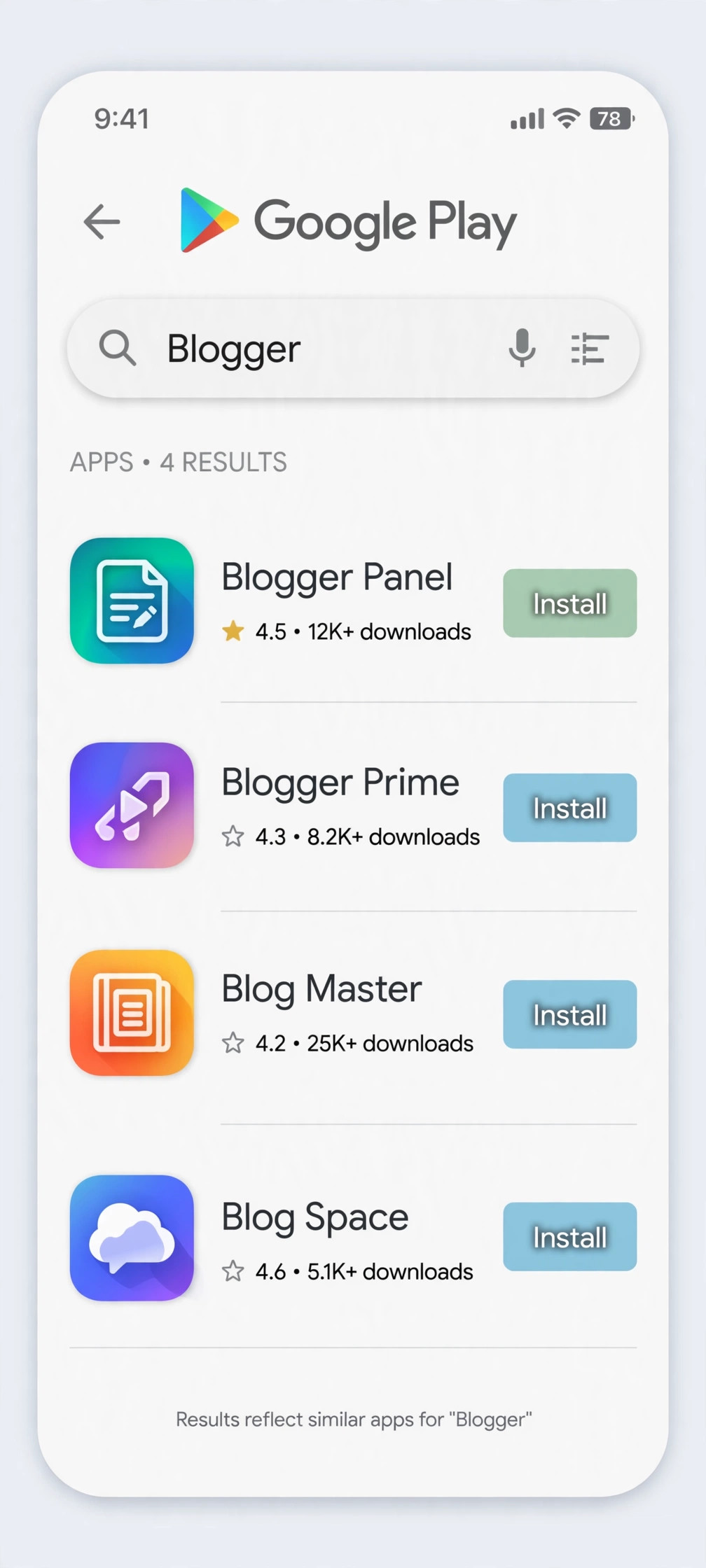
If you run a blog on Blogger and want to manage it from your phone, your first instinct is probably to open the Play Store or the App Store and search for “Blogger”. Do that, and you will see a long list of apps with very convincing names: Blogger Panel, Blogger Prime, Blog Master, Blog Space — and if you search for “Blogspot”, even more appear.
Here is the problem: most of those apps have nothing to do with Google. And almost all of them will ask you to sign in with your Google account before they do anything at all. That is exactly what makes them dangerous — your Google login is the key to your Gmail, your Google Drive, your YouTube channel, and your blog itself.
In this guide, you will learn how to tell the real Blogger app from the fakes, what to do on iPhone where no official app exists, and the safest way to use Blogger on your phone. It is based on our video walkthrough, updated with what has changed since the video was recorded.
What you see when you search for Blogger
Open the Play Store or App Store on your phone, type “Blogger” in the search bar, and you will get a list of apps that all look like they could be the real thing. In the video, the search returned names like Blogger Panel, Blogger Prime, and Blog Master, and a search for “Blogspot” added more, including Blog Space and apps with “Fake GPS” in the name.
None of the names in that list tell you who actually made the app. A name, an orange icon, and a good star rating are easy to copy — and that is exactly what the developers of these apps count on. A high rating does not mean an app is safe; it only means people downloaded it.
Why these fake Blogger apps are dangerous
A fake Blogger app is dangerous for one simple reason: to be useful at all, it needs you to sign in with your Google account. The moment you type your Google email and password — or approve a Google sign-in — inside an app you do not trust, you are handing the keys to your whole Google account to a stranger.
With that access, a malicious app could read your Gmail, open your Google Drive files, post on your YouTube channel, or take over your blog and lock you out of it. Even a “harmless” copycat app that only shows you your own blog posts is still sitting between you and your account, and you have no way of knowing what it does with your login in the background.
The rule is simple: never type your Google password into an app unless you are sure who made it. And for Blogger, there is a very easy way to check.
Step 1: Check the developer name before you install anything
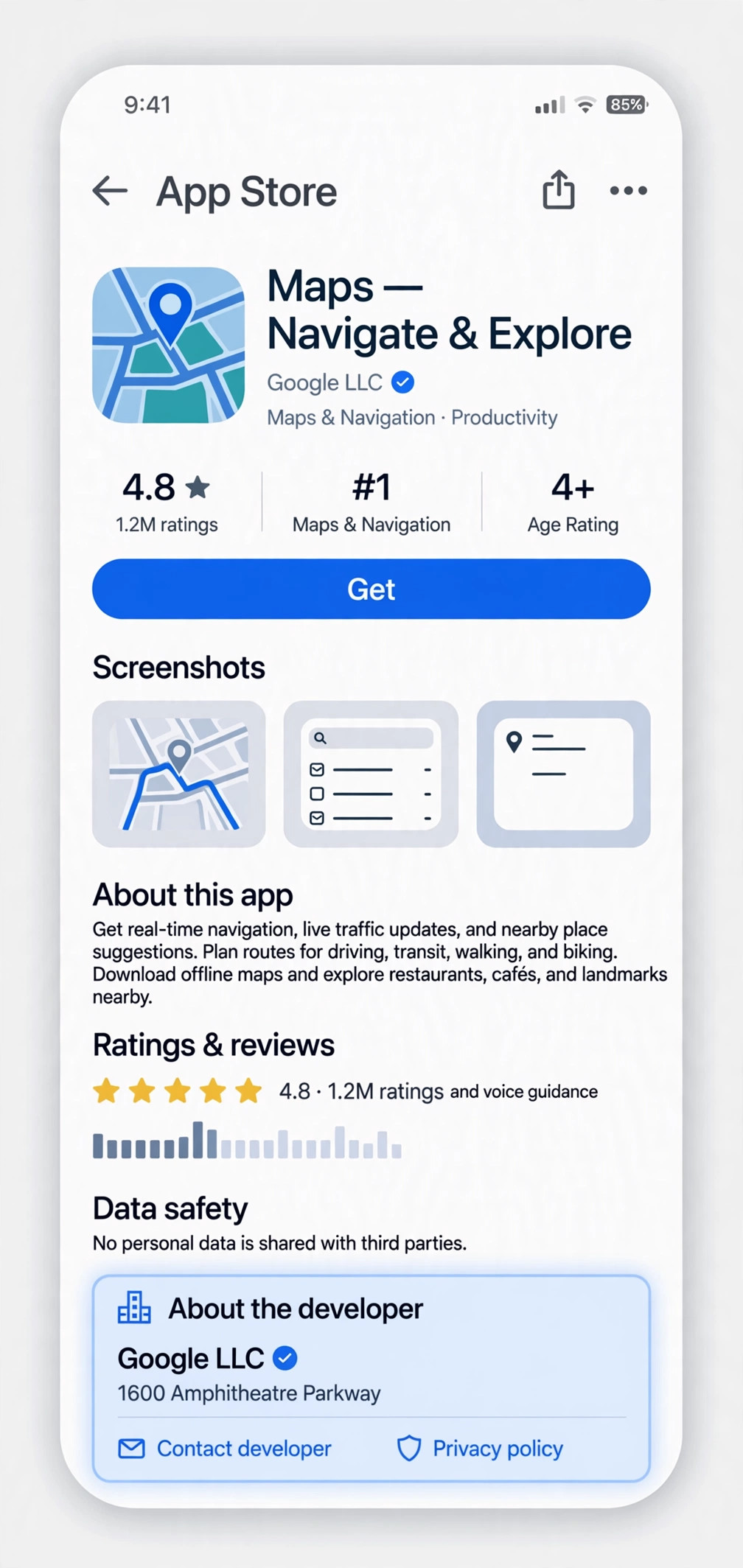
Every app listing shows who published it. On the Play Store, scroll down to the “About the developer” section; on the App Store, the developer name sits right under the app’s title, next to a verified checkmark on official listings.
The only official Blogger app is published by Google LLC. If the developer name is anything else — a person’s name, a random company, or anything with “Blogger” in it that is not Google LLC — it is not Google’s app. Do not install it, and definitely do not sign in with your Google account in it.
Step 2: Open the developer’s page and check the full list
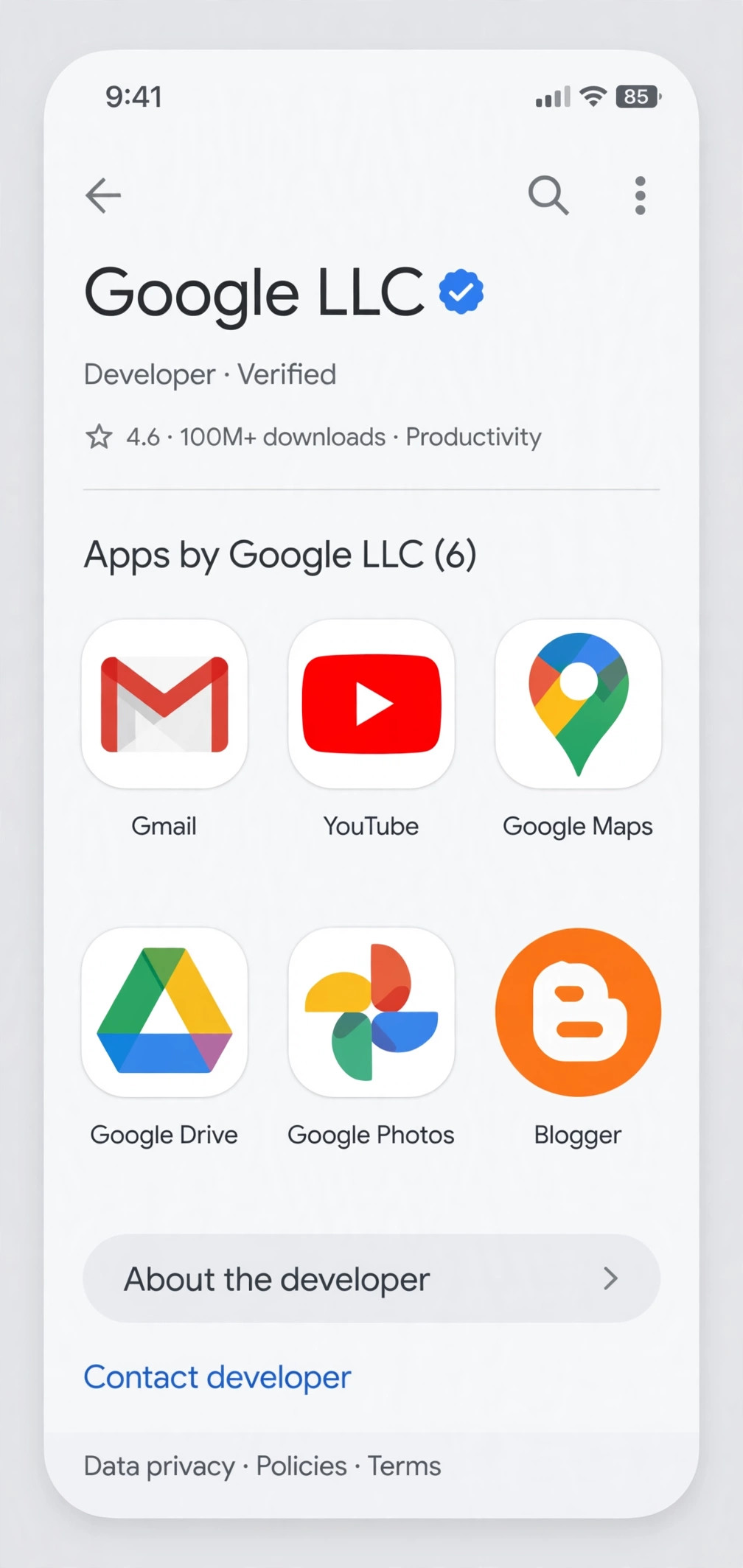
Tapping the developer name opens a page with every app that developer has published. Tap “Google LLC” and you will see the apps you already know — Gmail, YouTube, Google Maps, Google Drive, Google Photos — and, on Android, the official Blogger app among them.
This is the check the video recommends, and it is still the best one: if the app you are looking at does not appear on the Google LLC developer page, it is not Google’s, no matter how official its icon or name looks.
Step 3: Know what is official on your phone — Android vs iPhone
This is where the video needs an update. When it was recorded, the message was simple: Google never made a Blogger app. That is no longer the whole story.
On Android, there IS an official Blogger app. Google publishes it under the name “Blogger” (developer Google LLC), and it was updated as recently as 4 November 2026. Google’s own Blogger Help pages confirm it: anyone with Android 5.0 or newer can download it, sign in with a Google account, and use it to create and publish posts, save drafts, schedule posts, add photos, and switch between blogs and accounts.
On iPhone, there is still NO official Blogger app. Apple users searching the App Store will only find third-party apps. If you use an iPhone, do not install any of them — use the browser instead, as described in the next step.
What the official Android app cannot do is also worth knowing: changing your theme or layout, managing comments, AdSense, or pages, adjusting settings, and checking your stats are all only available on the Blogger dashboard on the web. The app is for writing and publishing; the serious settings live in the browser.
Step 4: The safest way to use Blogger on your phone — the browser
Whether you are on Android or iPhone, the safest way to manage your blog from your phone needs no app at all:
- Open your phone’s browser — Chrome on Android, Safari or Chrome on iPhone.
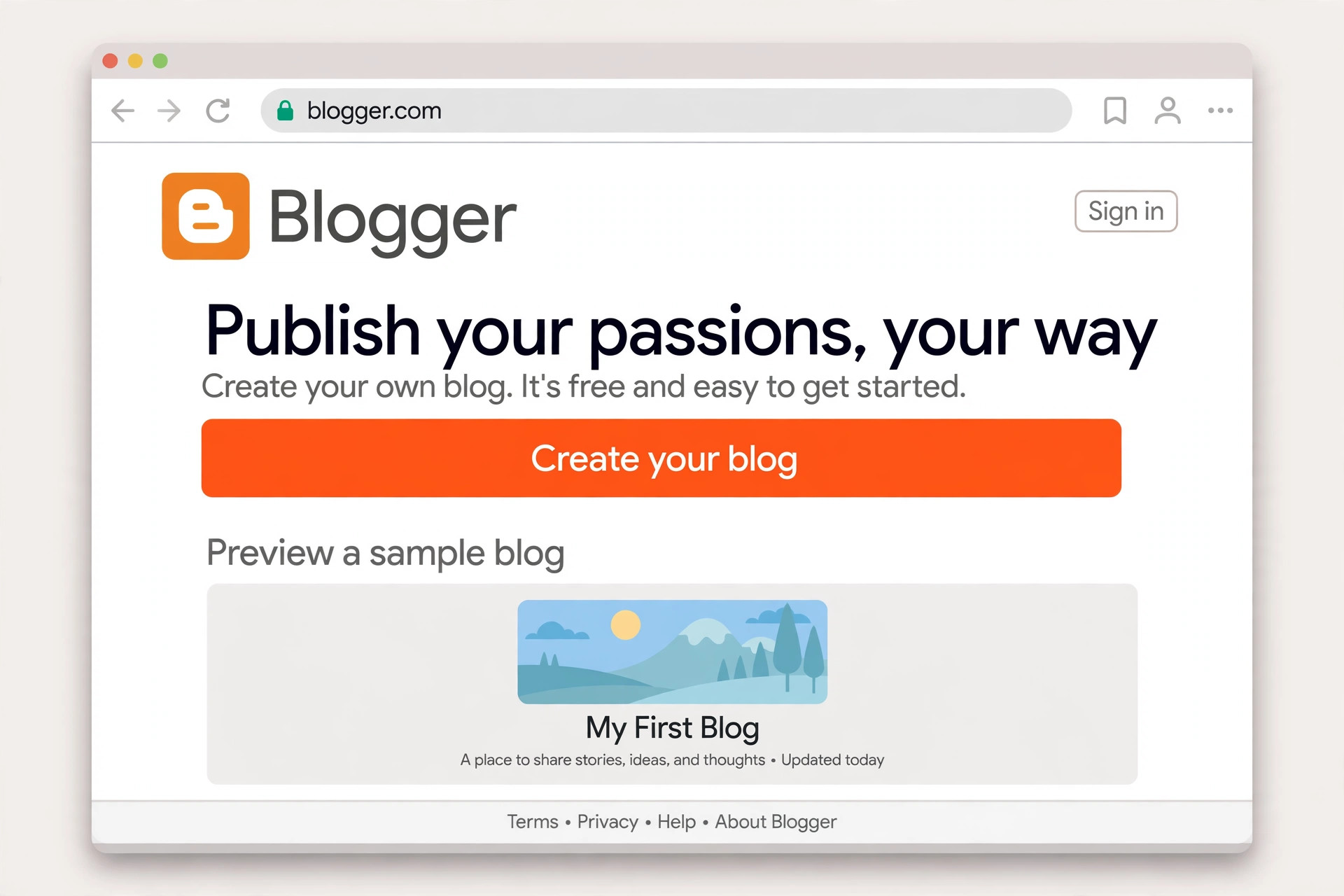
- Type blogger.com in the address bar and press Enter.
- Tap Sign in and sign in with the Google account your blog belongs to.
- You will land on your Blogger dashboard, where you can write posts, manage pages, change your theme, check stats, and do everything the app cannot.
Bookmark blogger.com on your home screen and it works just like an app — without ever giving your login to a third party.
What to do if you already signed in to a fake Blogger app
If you have already entered your Google login into one of these apps, do not panic — but act now:
- Uninstall the app from your phone straight away.
- Change your Google account password immediately, from a browser at myaccount.google.com — not from inside the app.
- Check third-party access: go to myaccount.google.com/permissions and look at every app and service connected to your Google account. Remove anything you do not recognise.
- Turn on 2-Step Verification for your Google account if it is not on already. It means a stolen password alone is no longer enough to get into your account.
- Check your recent security activity in your Google account for sign-ins or changes you did not make, and change the passwords of any other accounts that used the same password.
If your blog itself was changed — posts deleted, strange posts published, or settings altered — recover it from the Blogger dashboard and check the blog’s permissions to make sure no unknown admin or author was added.
FAQs
Is there an official Blogger app?
Yes — on Android. Google publishes an official Blogger app (developer Google LLC) for Android 5.0 and up, for creating, editing, and publishing posts. There is no official Blogger app for iPhone; iPhone users should use blogger.com in the browser.
Are apps like Blogger Panel, Blogger Prime, or Blog Master safe?
No — not as a way to access your blog. None of them are made by Google, and they ask you to sign in with your Google account. Do not give your Google login to any app whose developer is not Google LLC.
How do I know an app is really from Google?
Check the developer name on the app’s store listing — it must say “Google LLC” — then tap the developer name and confirm the app appears on Google’s official developer page alongside Gmail, YouTube, and Google Maps.
Can I use Blogger on my iPhone?
Yes, in the browser. Open Safari or Chrome, go to blogger.com, and sign in with your Google account. You get the full Blogger dashboard, including settings and stats the mobile app does not have. If you also manage Google account activity, see our guide on how to check and delete your YouTube watch history.
I logged in to a fake Blogger app. What should I do first?
Uninstall the app, change your Google password from a browser, then go to myaccount.google.com/permissions and remove any access you do not recognise. Turn on 2-Step Verification so a stolen password alone cannot open your account.
Conclusion
The Play Store and App Store are full of apps that call themselves Blogger, and most of them are not made by Google. They look convincing, they have good ratings, and they all want the same thing: your Google login. On Android, the one real Blogger app is published by Google LLC — check the developer name before you install anything. On iPhone, there is no official app at all, so the browser is the way to go. And for everyone, blogger.com in your browser does the whole job safely, with no third party in between.
If this saved you from a bad download, share it with another Blogger user — they have probably seen the same list of apps and wondered which one to trust. For another guide about connecting tools to your Google account safely, see how to connect Gemini to Gmail.
Watch the video
Watch the full walkthrough above to see the fake apps in the store, how to check the developer name, and the safe way to open your Blogger account.