Muse AI is Meta’s personal AI agent — an assistant that does not just answer questions, it carries out multi-step tasks for you, like organising your email, planning a trip or managing your calendar. It launched in September 2026, and signing up takes a few minutes. The one step that trips most people up is the age check: Muse is 18+, and if you do not want to verify with a credit card, you can confirm your age with your Instagram account instead.
This guide walks through the whole sign-up, step by step, using the Instagram option — the way shown in our video below. First, one clarification so there is no confusion: this “Muse AI” is Meta’s product at muse.ai. It is not Claude by Anthropic, and it is a different product from the Meta AI app.
Before you start — what you need
- An active email address you can open right now — Gmail or Outlook work best. Muse sends you a verification code, so the inbox has to be one you can reach.
- To be 18 or older. Muse is strictly for adults. You will enter your date of birth, and then prove it with one of the age-check methods below.
- To be in a supported country. Muse launched in the United States in September 2026 and has since opened in Canada, Japan and Singapore (Mexico is also reported as available). If you are outside a supported country, the site shows a waitlist notice instead of the sign-up form. Do not try to get around the region check with a VPN or proxy — accounts created that way can be restricted or disabled.
- An Instagram account (for the method in this guide). The birth date on that Instagram account should match your real age — that is what Muse checks. A Facebook account works the same way if you prefer it, and a credit or debit card is the third option.
How to sign up for Muse AI with Instagram (step by step)
Step 1: Go to muse.ai
Open a browser and go to muse.ai, the official Muse website. You can also install the Muse app from the App Store or Google Play, but the web sign-up is the quickest way to follow along. Only use the official site or the official app — a brand-new AI product attracts fake apps, so do not sign up through any other link.
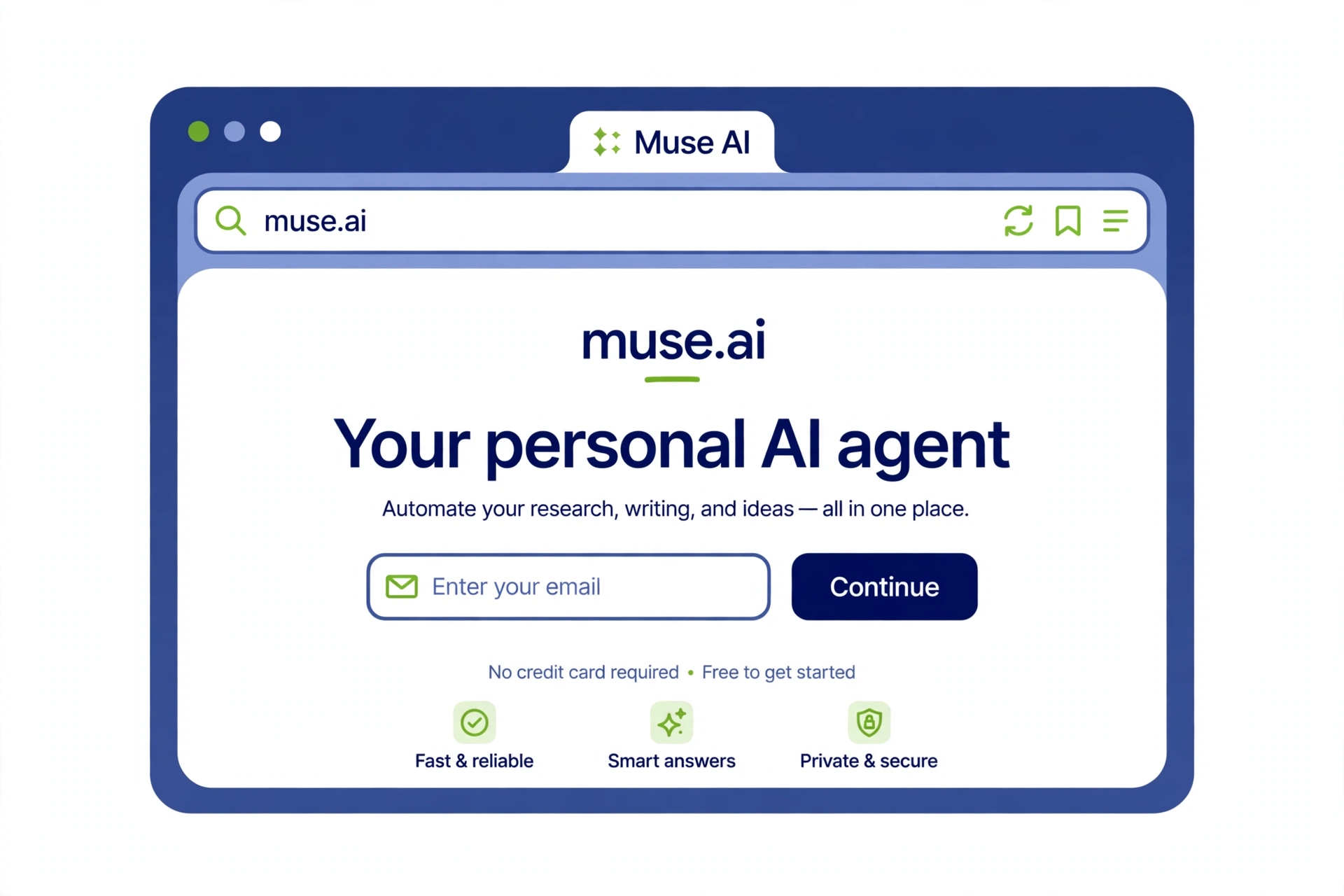
Step 2: Enter your email address and confirm the code
Type your email address on the sign-up page and click Continue. Muse sends a one-time code to that inbox. Open your email, copy the code, paste it back on the Muse page and continue. If the code does not arrive within a couple of minutes, check your spam folder, or try a Gmail or Outlook address instead — some smaller providers deliver the code late or not at all.
Step 3: Enter your date of birth
Muse asks for your date of birth to confirm you are 18 or older. Enter your real date of birth — it has to match the age on the account you use for the next step.
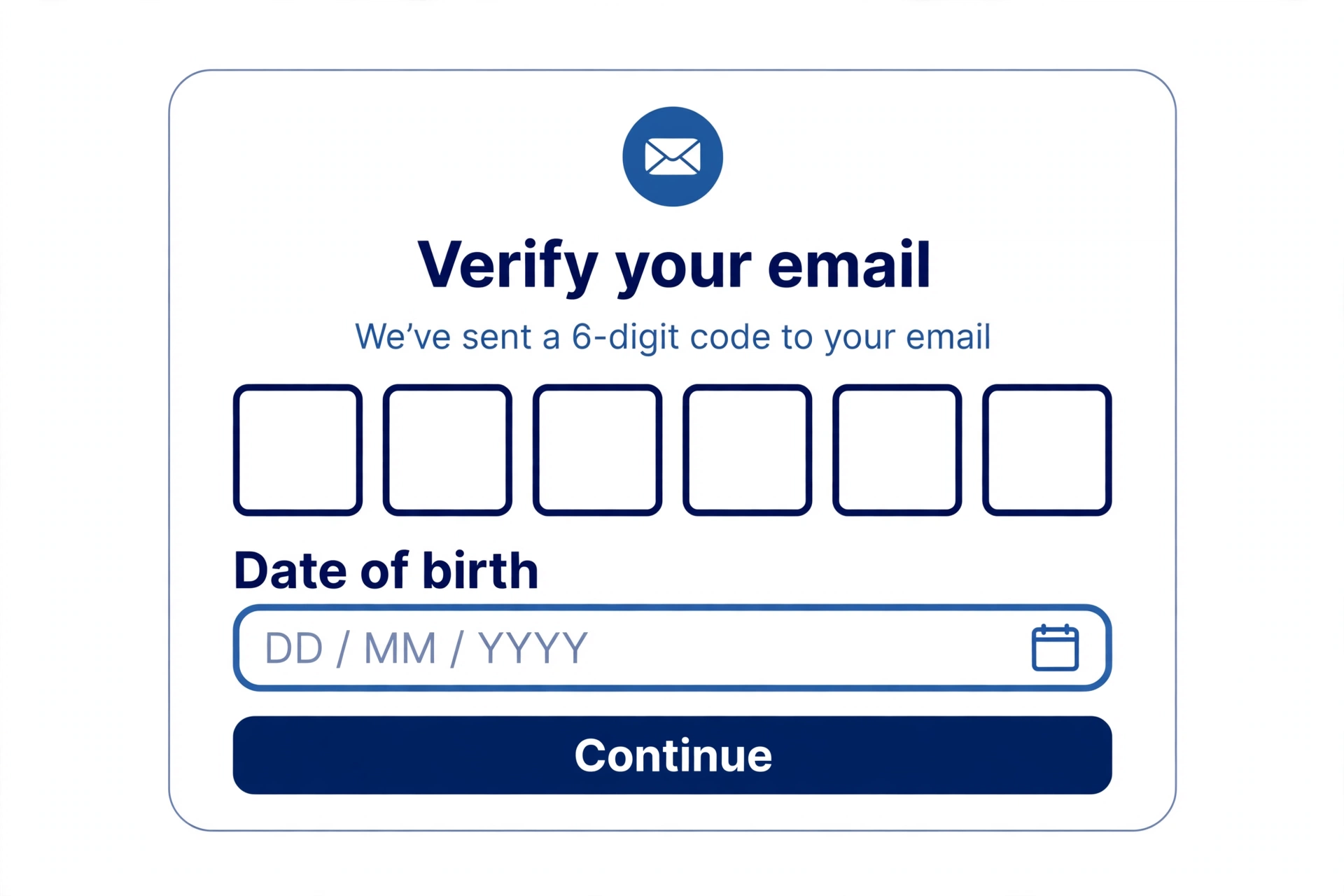
Step 4: Choose how to confirm your age — pick Instagram
This is the step most guides skip over. Muse offers three ways to verify your age: a credit or debit card, a Facebook account, or an Instagram account. The card option places a temporary $1 authorisation on your card, which is returned within 5–7 business days — it is only an age check, not a payment. If you would rather not use a card, click the Instagram option. (An older phone-number verification method no longer appears, so do not look for it.)
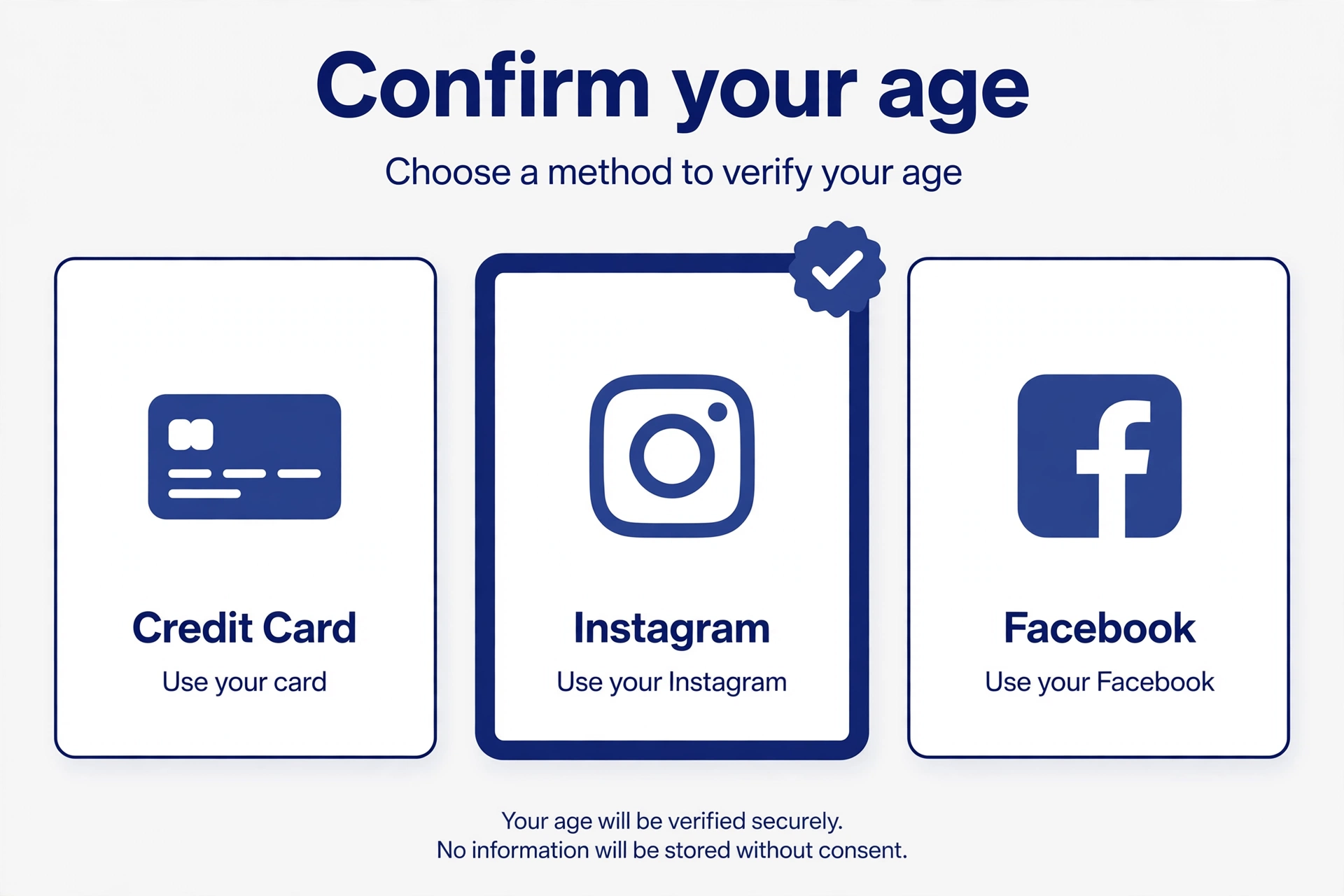
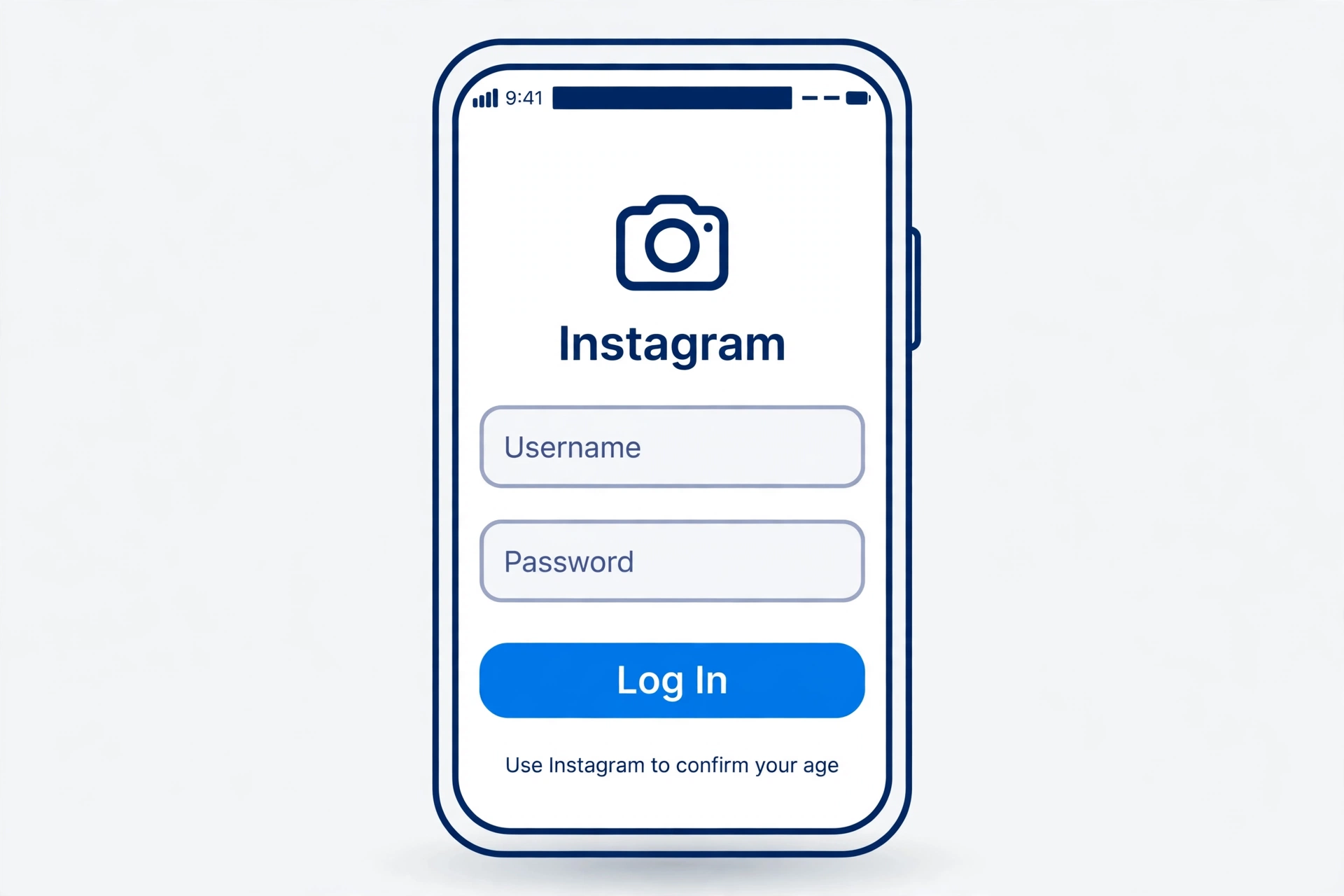
Step 5: Log in to Instagram and confirm
Muse asks you to log in to your Instagram account. Sign in with your usual Instagram login, then confirm that you want to use Instagram to verify your age. Muse only checks the age on that account — it does not post to your Instagram or read your messages. Once the check passes, you are back on the Muse setup screen.
Step 6: Name your agent and get started
Muse now asks for your name and lets you give your agent a name — the name you will call it in conversation. Type a name, continue, and Muse finishes setting up your account. That is the whole sign-up: email, code, date of birth, Instagram age check, and a name. No phone number is needed anywhere in this flow.
Optional: redeem an invite code for free tokens
New Muse accounts start with a usage allowance, and an invite code can add 1 billion free tokens to get you started. The catch is timing: the code has to be redeemed within 48 hours of creating your account, or it stops working. Go to Settings, then Redeem (on the web: Settings → General → Usage → Redeem invite code), enter the code and confirm. Do not paste random codes from comments or social posts — only use a code from someone you trust, and check it worked before the 48 hours run out.
What can you do with Muse once you are in?
Muse runs in the cloud, not just on your device, so it keeps working on a task after you close the app. Ask it in plain words: summarise your unread emails, plan a trip, organise your calendar, look something up, or draft a message. It can connect to apps like Gmail and Instagram and work across them. Start with one small task you can check yourself — for example, “summarise my unread emails from this week” — before you hand it anything important, and review what it can access in Settings first.
What if you see the waitlist instead of the sign-up form?
That means Muse has not opened in your country yet. The page will say it is not available in your region and that Meta will let you know when it is. There is no official way to skip the waitlist, and paying for a proxy or a “Muse account” from a stranger is a good way to lose both the money and the account. Check back at muse.ai — the country list has already grown from one country to several since launch, so more regions are likely to follow.
For a second walkthrough of the same registration flow, see this independent Muse registration guide.
Pricing — is Muse AI free?
Yes, to start. The free tier costs nothing and includes a weekly usage allowance, which is enough for everyday tasks. If you use it heavily, there are two paid tiers — Power at $20 a month and Maximum at $100 a month — for more capacity. Signing up never asks you to pay; the card in the age-check step is only a temporary $1 authorisation, not a charge.
Frequently asked questions
Is signing up for Muse AI free?
Yes. Creating the account and the free tier cost nothing. The only money involved is the temporary $1 card authorisation if you choose the card age check, and that is returned.
Do I need an Instagram account to sign up?
No. Instagram is one of three age-verification options. You can verify with a Facebook account or a credit/debit card instead. You do need a Meta account behind the sign-up, but that can be created with just an email address.
Can I sign up for Muse AI outside the US?
Yes, if you are in a supported country — as of November 2026, the US, Canada, Japan and Singapore (Mexico also reported). Outside those, you will see the waitlist notice for now.
Is Muse AI the same as Claude?
No. Muse AI is Meta’s personal AI agent at muse.ai. Claude is a separate AI assistant by Anthropic. They are different products from different companies, even though both can help with email and everyday tasks. If you want to compare, our guides to connecting Claude to Gmail and ChatGPT to Gmail show how the other assistants handle the same jobs.
Does Muse post to my Instagram?
No. When you verify your age with Instagram, Muse only confirms the age on that account. It does not post, follow anyone, or read your direct messages as part of the sign-up.
What if the verification code never arrives?
Check spam first, then try a different email provider — Gmail and Outlook are the most reliable for Muse’s codes. If it still does not come, wait a few minutes and request a new code rather than requesting several at once.
Watch the video
Watch the full sign-up on video — email, code, date of birth, and the Instagram age check, start to finish:
Bottom line
Signing up for Muse AI takes about five minutes: go to muse.ai, verify your email, enter your date of birth, and confirm your age — Instagram is the simplest option if you already have an account, and it avoids the card check entirely. You need to be 18+ and in a supported country; if you are not, you will see the waitlist, and the honest move is to wait for the rollout rather than work around it. Once you are in, redeem an invite code within 48 hours if you have one, then give Muse one small task and see what it can do.
Also read: How to Connect ChatGPT to Gmail, How to Connect Claude to Webflow, and How to Connect Gemini to Gmail.