
Managing emails can be time-consuming, especially when you frequently need to compose professional messages, respond to conversations, or send invitations. Fortunately, AI tools like Claude can make email management easier by helping you write and send emails directly from a connected Gmail account.
With the Claude Gmail integration, you can connect your Gmail account to Claude AI, generate emails using simple instructions, and send messages without manually switching between applications.
The best part? You can use the Gmail connector with a free Claude account, subject to the features and usage limits available on your account.
In this step-by-step guide, you’ll learn how to connect Claude AI to Gmail, enable the Gmail connector, and use Claude to compose and send emails.
Get 20% discount on your website hosting plan.
What Is Claude AI’s Gmail Integration?
Claude AI is an artificial intelligence assistant developed by Anthropic. It can help users with writing, research, analysis, and various productivity tasks.
Through its Gmail integration, Claude can interact with your connected Gmail account, allowing you to manage certain email-related tasks using natural language instructions.
Instead of manually composing an email in Gmail, you can simply tell Claude what you want to communicate, who should receive the message, and what information should be included.
For example, you could ask Claude to write a professional meeting invitation, compose a project update, or send a party invitation to a friend.
This integration can be particularly useful for freelancers, business owners, professionals, and anyone looking to simplify everyday email communication.
How to Connect Claude AI to Gmail
Connecting Claude to Gmail is straightforward and only takes a few minutes. Follow the steps below to get started.
Step 1: Open Claude AI Settings
First, visit the official Claude AI website and sign in to your account.
Once you’re logged in:
- Open the account menu in Claude.
- Click on Settings.
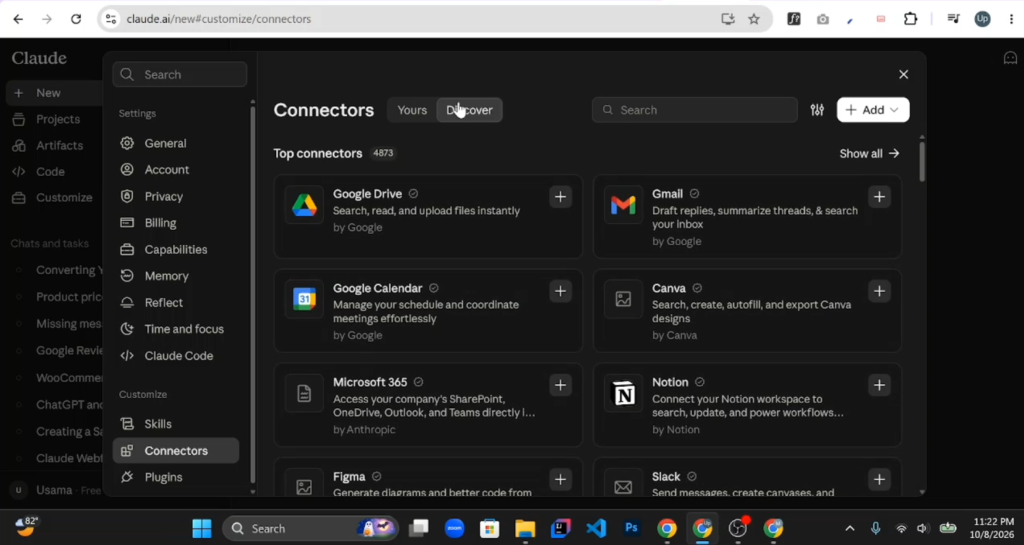
- Find and select the Connectors section.
- Click Discover to explore the available integrations.
The Connectors section allows you to link Claude with supported external applications and services.
Step 2: Find the Gmail Connector
Inside the connector directory, you’ll see different applications that can be integrated with Claude.
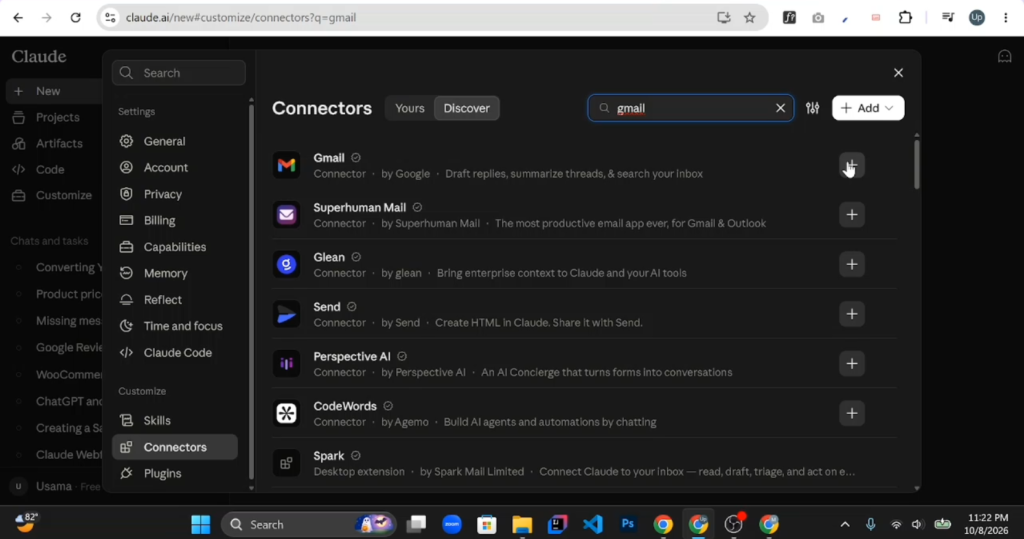
Gmail may appear under the featured or top connectors section. If you cannot find it immediately, use the search bar to locate it.
Once you find Gmail, click the plus (+) icon next to it to begin the connection process.
Step 3: Connect Your Google Account
After selecting Gmail, Claude will redirect you to Google’s authorization process.
Follow these steps:
- Choose the Google account you want to connect.
- Click Continue.
- Review the permissions requested by Claude.
- Select the permissions required for the Gmail features you want to use.
- Scroll down and click Continue to authorize the connection.
Important: Before granting access, carefully review the permissions. Only connect a Google account you’re comfortable allowing Claude to access.
Once the authorization process is complete, you’ll be redirected to Claude.
You should now see a confirmation indicating that your Gmail account has been successfully connected.
Also read: How to Connect Figma with Claude: A Step-by-Step Guide
How to Enable Gmail in a Claude Chat
After connecting your Gmail account, the next step is to make sure the Gmail connector is enabled in your conversation.
To do this:
- Return to the Claude AI interface.
- Start a New Chat.
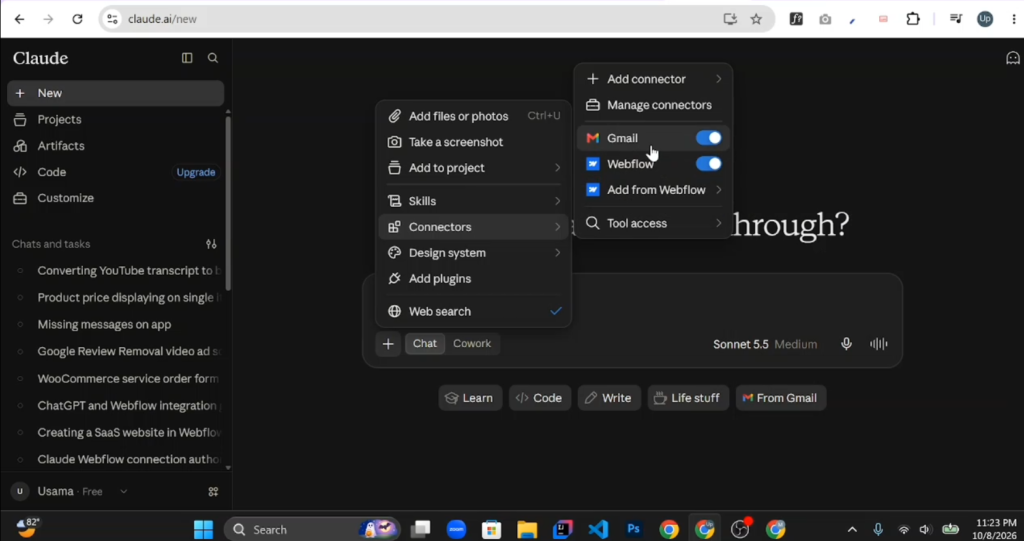
- Click the plus (+) icon near the message input area.
- Open the Connectors menu.
- Locate Gmail and make sure its toggle is enabled.
Enabling this option allows Claude to use the Gmail connector during your conversation.
If Gmail is disabled, Claude may not be able to perform the email-related actions you request.
How to Send Emails Using Claude AI
Now that your Gmail account is connected and the connector is enabled, you can start using Claude to compose and send emails.
You don’t need to write complicated instructions. Simply describe what you want Claude to do in natural language.
Step 1: Give Claude an Email Prompt
For example, suppose you want to invite a friend to a party.
You can use a prompt like this:
Example Prompt:
“Write and send a friendly party invitation email to friend@example.com. The party will take place on Saturday, November 7, at 7:00 PM at my home. Use the subject line ‘You’re Invited to My Party!’ and keep the message warm, friendly, and professional.”
Claude will use your instructions to prepare the email and, when supported and authorized, send it through your connected Gmail account.
Step 2: Allow Claude to Access Gmail
When you attempt to use Gmail through Claude for the first time, you may see an additional permission request. Claude may ask you to authorize the conversation to access your Gmail account.
Depending on the available options, you can grant permission for the current interaction or choose a longer-lasting authorization, such as Always Allow.
Choose the option that best matches your privacy preferences.
Step 3: Review the Email and Confirm the Result
Once Claude processes your request, it may generate the email and perform the requested sending action. Afterward, check the response to confirm whether the email was successfully sent.
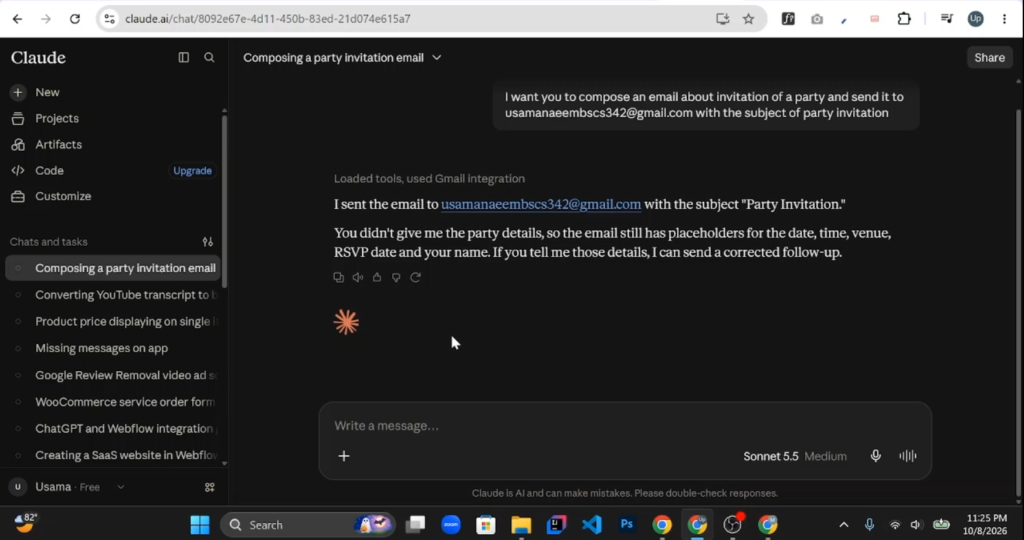
You can also open Gmail and check the Sent folder to verify that the message was delivered to Gmail for sending.
Tip: Always provide the recipient’s correct email address, subject, purpose, and important details. If your instructions are incomplete, Claude may generate a message containing placeholders instead of the information you intended.
For important emails, ask Claude to prepare a draft first so you can review it before sending.
Tips for Writing Better Emails With Claude AI
Although Claude can generate emails from simple prompts, providing detailed instructions can significantly improve the results.
Here are a few useful practices:
- Specify the recipient: Include the correct email address to avoid sending messages to the wrong person.
- Explain the purpose: Clearly describe whether the email is an invitation, business proposal, follow-up, or another type of communication.
- Choose a tone: Tell Claude whether the message should sound formal, friendly, professional, or casual.
- Provide important details: Include relevant dates, times, locations, names, and other necessary information.
- Review before sending: Double-check the content, especially when communicating with clients or business contacts.
Following these practices can help you create accurate, professional, and personalized emails.
Benefits of Connecting Claude AI With Gmail
Integrating Claude with Gmail can offer several practical advantages.
1. Save Time on Email Writing
Instead of spending several minutes composing each message, you can provide a short prompt and let Claude generate a structured email.
2. Write More Professional Emails
Claude can help improve grammar, sentence structure, clarity, and tone, making it useful for professional communication.
3. Simplify Repetitive Email Tasks
If you regularly send invitations, follow-ups, or project updates, Claude can help reduce the amount of manual writing involved.
4. Manage Email Tasks With Natural Language
You don’t need technical knowledge or coding experience to use the integration. You can communicate with Claude using everyday language.
5. Get Started Without a Paid Subscription
The Gmail connector can be available to free Claude users, making it accessible to people who want to experiment with AI-assisted email management without immediately purchasing a subscription.
However, availability and usage limits may vary depending on Anthropic’s current policies and your account.
Is It Safe to Connect Gmail With Claude AI?
Connecting Gmail with Claude involves granting an external application permission to access certain information or perform actions in your Google account.
Google’s authorization process allows you to review the permissions before approving the connection.
For safer use, consider the following precautions:
- Review the requested permissions before connecting your account.
- Avoid granting unnecessary access.
- Verify recipient addresses before sending messages.
- Review sensitive or confidential email content carefully.
- Revoke access from your Google Account settings if you no longer need the integration.
You can manage third-party application access through your Google Account security settings.
Frequently Asked Questions (FAQs)
1. Can I connect Claude AI to Gmail for free?
Yes. Claude’s Gmail connector can be available on free accounts, depending on the current feature availability and usage restrictions. You don’t necessarily need a paid Claude subscription to get started.
2. How do I connect my Gmail account to Claude AI?
Open Claude AI, navigate to Settings → Connectors → Discover, search for Gmail, and select the connector. Then choose your Google account and authorize the requested permissions.
3. Can Claude AI send emails directly from Gmail?
Yes, when the Gmail connector supports sending and your account has the necessary permissions, Claude can send emails using your connected Gmail account. You should always verify that the sending action was completed successfully.
4. Do I need coding knowledge to integrate Claude with Gmail?
No. The integration is designed to be accessible through Claude’s interface. You can connect your account and use natural language prompts without writing code.
5. Why is Gmail not working in my Claude chat?
If Gmail isn’t working, check whether your Google account is connected correctly and whether the Gmail connector is enabled in your current conversation. You should also verify that the required permissions have been granted and that the feature is available on your account.
6. Can Claude write professional business emails?
Yes. Claude can help compose professional emails, including client communications, meeting invitations, project updates, business proposals, and follow-up messages. Providing clear instructions will generally produce better results.
7. Can I disconnect Gmail from Claude AI?
Yes. You can manage your connected services through Claude’s connector settings. You can also revoke Claude’s access from your Google Account’s third-party connection settings.
8. Can Claude send emails automatically without my permission?
Claude’s ability to send emails depends on the connector’s capabilities and the permissions you grant. For greater control, ask Claude to draft emails first and review them before authorizing any sending action.
Conclusion
Connecting Claude AI with Gmail is a convenient way to simplify email writing and improve productivity.
By enabling the Gmail connector, you can ask Claude to compose professional messages, create personalized invitations, and perform supported email actions directly through your connected account.
The setup process is simple: open Claude’s connector settings, connect your Google account, enable Gmail in your conversation, and provide clear instructions.
Whether you’re a freelancer managing client communications, a business owner handling routine emails, or someone who simply wants to save time, the Claude Gmail integration can be a useful addition to your workflow.
For the best results, always provide complete instructions and review important messages before sending them.


Pingback: How to Connect ChatGPT to Outlook and Send Emails Using AI for Free - BuildNEarn