Artificial intelligence is making everyday tasks easier, and managing emails is no exception. Whether you’re sending professional messages, responding to clients, or writing personal invitations, ChatGPT can help you compose and send emails without manually writing every message. But did you know that you can connect ChatGPT directly to your Microsoft Outlook account and ask it to send emails on your behalf?
With the ChatGPT Outlook integration, you can use AI to draft professional emails, specify recipients, and send messages directly from your connected Outlook account.
The best part? You can get started without purchasing a paid ChatGPT or Microsoft Outlook subscription, provided the integration is available for your account.
In this guide, I’ll walk you through the complete process of connecting ChatGPT to Microsoft Outlook, granting the necessary permissions, and sending your first email using AI.
What Is the ChatGPT Outlook Integration?
The ChatGPT Outlook integration allows you to connect your Microsoft Outlook email account with ChatGPT through the Outlook Email plugin.
Once connected, ChatGPT can help you perform email-related tasks using natural language instructions.
For example, instead of opening Outlook, composing an email, writing the subject line, and manually entering the message, you can simply ask ChatGPT to prepare an email for a specific recipient.
Depending on the permissions granted and the available plugin functionality, ChatGPT can also send the email directly from your Outlook account.
What Can You Do With ChatGPT and Outlook?
By connecting Outlook with ChatGPT, you can:
- Compose professional emails: Ask ChatGPT to write clear, well-structured messages.
- Send emails using AI: Provide a recipient’s email address and ask ChatGPT to send a message.
- Save time: Reduce the effort involved in writing repetitive emails.
- Customize email tone: Request formal, friendly, persuasive, or professional messages.
- Write personal invitations: Create invitations for vacations, meetings, events, and other occasions.
- Improve email communication: Use AI to refine grammar, clarity, and formatting.
This integration can be particularly useful for freelancers, business owners, students, and professionals who regularly communicate through email.
How to Connect ChatGPT to Microsoft Outlook
Connecting your Outlook account to ChatGPT is straightforward and only takes a few minutes.
Follow the steps below to complete the integration.
Step 1: Open ChatGPT and Access Plugins
First, open ChatGPT in your web browser and sign in to your account.
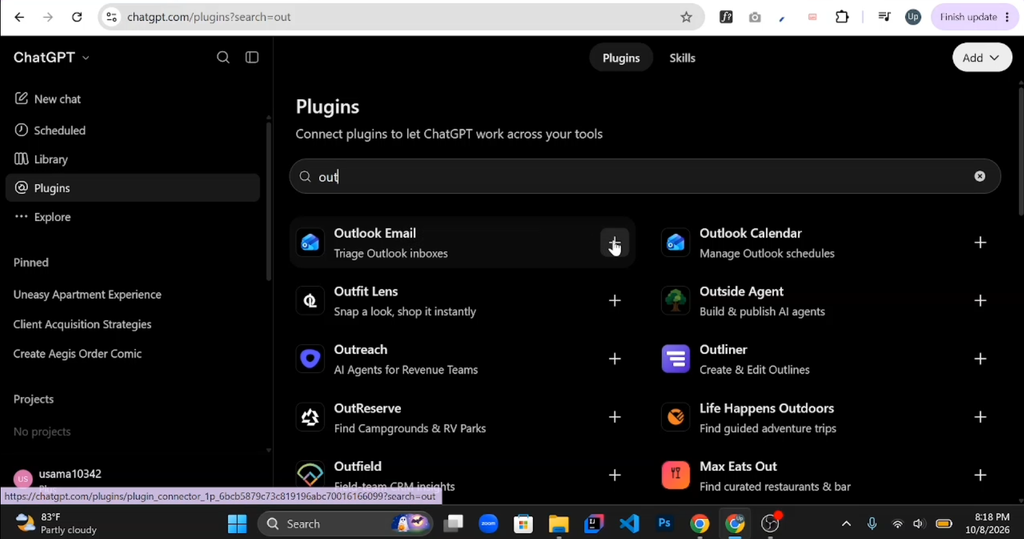
Once you’re logged in, navigate to the Plugins section.
This section allows you to discover and connect supported third-party applications with ChatGPT.
Step 2: Search for Microsoft Outlook
Inside the Plugins section, you’ll find a search bar that allows you to search for available integrations.
Type Outlook into the search bar.
From the search results, locate and select Outlook Email.
This is the integration we’ll use to connect Microsoft Outlook with ChatGPT.
Step 3: Connect Your Outlook Account
After opening the Outlook Email plugin, click the plus (+) icon to begin the connection process.
ChatGPT will redirect you to Microsoft’s authentication page, where you’ll need to sign in to your Microsoft account.
Enter your Microsoft account credentials and follow the on-screen instructions.
Depending on your account’s security settings, Microsoft may ask you to complete additional verification steps or add a recovery email address.
These steps can vary between accounts, so simply follow the instructions displayed on your screen.
Step 4: Grant the Required Permissions
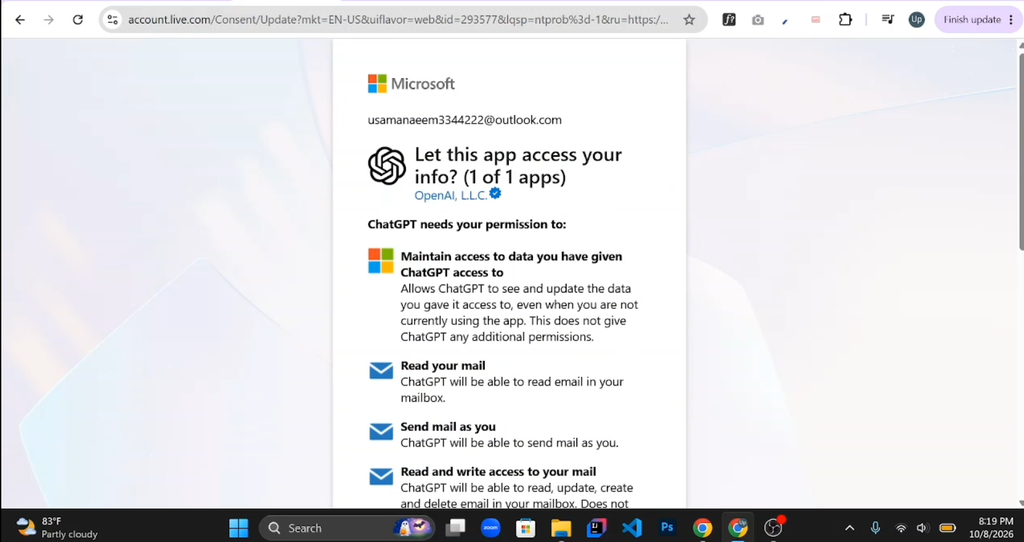
After signing in, Microsoft will display a permissions page.
This page explains what information and actions the Outlook Email integration is requesting access to.
Carefully review the permissions before proceeding.
If you’re comfortable with the requested access, scroll down and click Accept.
Microsoft will then authorize the connection between your Outlook account and ChatGPT.
Step 5: Confirm the Outlook Connection
Once the authorization process is complete, you’ll be redirected to ChatGPT.
You should see a confirmation indicating that the Outlook Email plugin has been installed or connected successfully.
Congratulations! Your Microsoft Outlook account is now connected to ChatGPT.
You can start using AI to compose and send emails.
How to Send Emails Using ChatGPT and Outlook
Now that your Outlook account is connected, let’s see how you can use ChatGPT to send an email.
Step 1: Start a New Chat
Open a new conversation in ChatGPT.
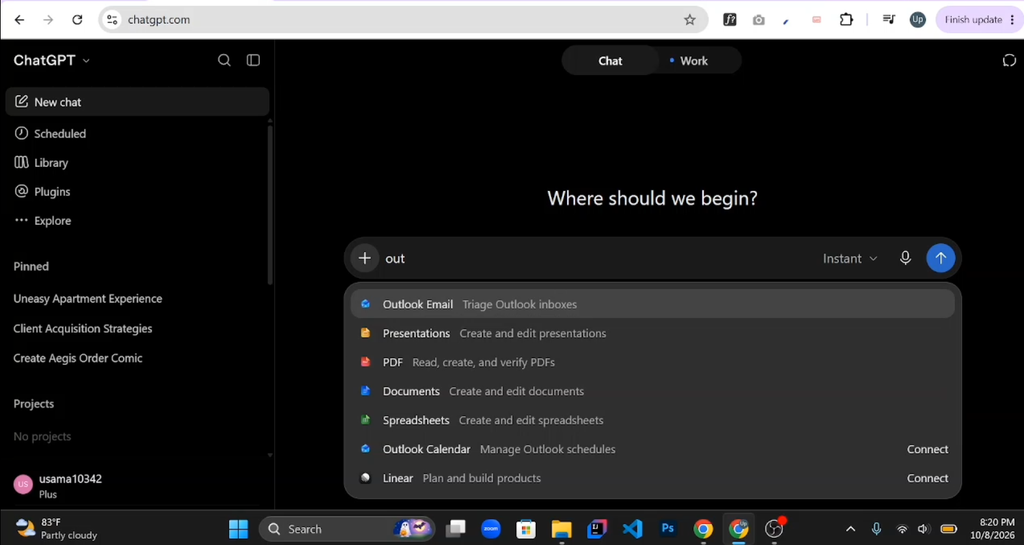
Click the plus (+) icon near the message box and search for Outlook.
Select Outlook Email from the available plugins.
This enables ChatGPT to use your connected Outlook account for the conversation.
Step 2: Ask ChatGPT to Compose an Email
Next, provide ChatGPT with instructions about the email you want to send.
For example, suppose you want to invite a friend to spend the summer vacation together.
You can use the following prompt:
Example Prompt:
“Write a professional email inviting my friend to spend the summer vacation together. Send it to example@gmail.com with the subject ‘Summer Vacation’. Make sure the email is friendly, polite, and professionally written.”
Replace the example email address with your recipient’s actual email address.
ChatGPT will process your request and prepare an appropriate email based on your instructions.
You can also specify additional details, such as the desired tone, subject line, or information to include in the message.
Step 3: Allow ChatGPT to Access Outlook
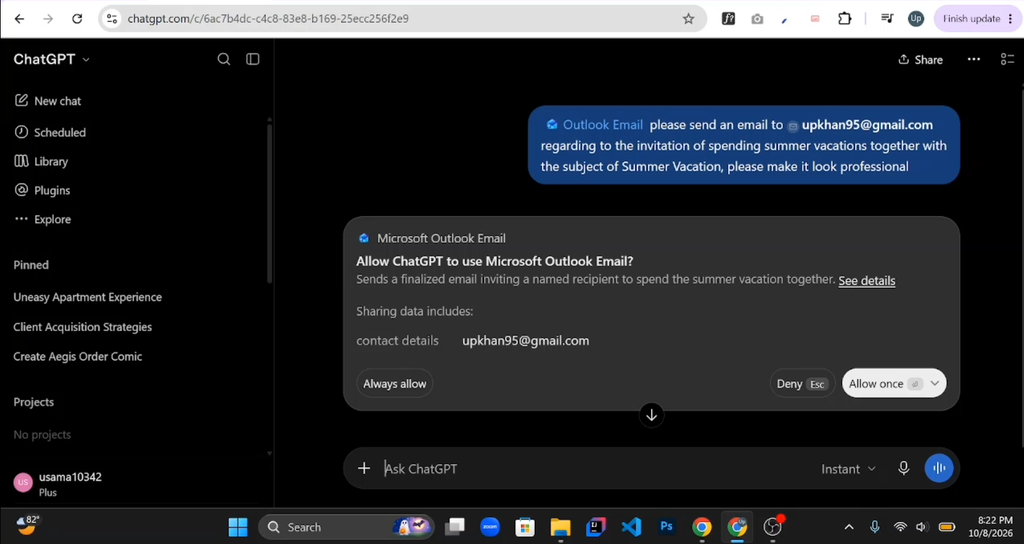
When ChatGPT attempts to use the Outlook Email plugin, it may ask for additional permission.
You might see an authorization prompt asking whether you want to allow ChatGPT to use Microsoft Outlook Email.
Depending on the available options, you can approve the action for the current request or allow continued access.
In my demonstration, I selected Allow Always to avoid repeated permission requests within the conversation.
However, you should only grant ongoing access if you trust the integration and understand the permissions being requested.
Step 4: Send the Email
Once the necessary permissions have been granted, ChatGPT will continue processing your request.
If the Outlook integration supports sending emails and the action succeeds, ChatGPT will display a confirmation message.
In my test, the email was sent successfully to the specified recipient.
ChatGPT also provided details about the email, confirming that the requested action had been completed.
This means you can compose and send an email without manually opening the Outlook email composer.
How to Verify That ChatGPT Sent Your Email
After sending an email through ChatGPT, it’s a good idea to verify that the message was successfully delivered.
There are two simple ways to check.
Method 1: Check the Recipient’s Inbox
First, open the recipient’s email account and check the inbox.
If the message doesn’t appear immediately, refresh the inbox and wait a moment.
You should also check the Spam or Junk folder, as automated emails can sometimes be filtered by the recipient’s email provider.
During my demonstration, the email didn’t appear in the recipient’s main inbox. However, after checking the Spam folder, I found the message there.
This confirmed that the recipient’s email service had received the email, although it was classified as spam.
Method 2: Check Outlook’s Sent Items Folder
Another way to verify the sending process is to check your Outlook account.
- Open Microsoft Outlook.
- Sign in to the account connected with ChatGPT.
- Navigate to the Sent Items folder.
- Look for the email you asked ChatGPT to send.
- Open the message to review its recipient, subject, and content.
In my test, the email appeared in Outlook’s Sent Items folder, confirming that it had been sent through the connected account.
Important: An email appearing in Sent Items confirms that Outlook recorded it as sent, but it doesn’t guarantee delivery to the recipient’s inbox.
Is ChatGPT Outlook Integration Free?
One of the most useful aspects of this integration is that you may not need a paid subscription to get started.
In the process demonstrated in my tutorial, I was able to connect Outlook with ChatGPT without purchasing a paid subscription for either platform.
However, plugin availability, usage limits, account eligibility, and supported actions may change over time.
Some Microsoft work or school accounts may also require administrator approval before connecting third-party applications.
Therefore, it’s worth checking which features are currently available for your specific ChatGPT and Microsoft accounts.
Benefits of Connecting ChatGPT With Outlook
Integrating ChatGPT with Outlook can make email communication more efficient, especially if you frequently send similar types of messages.
Get 20% discount on your website hosting plan.
1. Save Time on Email Writing
Writing emails from scratch can be time-consuming, particularly when you need to maintain a professional tone.
ChatGPT can generate a complete email based on a short description of what you want to communicate.
2. Improve Email Quality
ChatGPT can help you create emails with better grammar, clearer sentences, and more professional formatting.
This is especially useful when communicating with clients, employers, or business partners.
3. Simplify Everyday Communication
You can use ChatGPT for various email-writing tasks, including meeting invitations, project updates, business inquiries, and personal messages.
Instead of spending several minutes composing an email, you can explain your requirements in a single prompt.
4. Customize Messages Easily
Not every email requires the same writing style.
You can ask ChatGPT to make a message more formal, concise, friendly, or persuasive depending on the recipient and purpose.
5. Reduce Repetitive Work
If you regularly send emails containing similar information, ChatGPT can help you prepare messages more efficiently.
However, it’s still important to review sensitive or important emails before sending them.
Tips for Using ChatGPT With Outlook Safely
Although the integration is convenient, you should follow a few best practices.
- Review email content: Check important messages for accuracy before sending them.
- Verify recipient addresses: Make sure the email is being sent to the correct person.
- Review permissions: Only grant the access required for your intended tasks.
- Protect sensitive information: Avoid unnecessarily sharing confidential business or personal data.
- Check delivery status: Remember that a successful send confirmation doesn’t always mean the message reached the recipient’s inbox.
Following these practices can help you use ChatGPT and Outlook more confidently.
Also read: How to Connect Claude AI to Gmail and Send Emails for Free.
Frequently Asked Questions (FAQs)
1. Can I connect ChatGPT to Microsoft Outlook for free?
Yes, free ChatGPT and Microsoft accounts may be sufficient to connect the Outlook Email plugin, depending on current availability and account eligibility. In my demonstration, no paid subscription was required.
2. Can ChatGPT send emails directly from Outlook?
Yes. With a supported Outlook Email integration and the necessary permissions, ChatGPT can send emails from your connected Microsoft Outlook account.
3. How do I connect Outlook to ChatGPT?
Open ChatGPT, navigate to Plugins, search for Outlook Email, and select the integration. Follow Microsoft’s sign-in and authorization process to connect your account.
4. Do I need ChatGPT Plus to use Outlook?
Not necessarily. The Outlook Email integration may be available to free users, although access and usage limits can vary depending on the account and current platform policies.
5. Can ChatGPT write professional emails for me?
Absolutely. You can ask ChatGPT to compose professional emails, invitations, follow-up messages, business inquiries, and other types of communication. You can also specify the tone, subject, and recipient.
6. Why did my ChatGPT-generated email go to spam?
An email can land in the recipient’s Spam folder for several reasons, including email-provider filtering, sender reputation, message content, or the recipient’s spam settings.
This doesn’t necessarily mean the Outlook integration failed.
7. How can I check whether ChatGPT sent my Outlook email?
Open your connected Microsoft Outlook account and navigate to the Sent Items folder. If the message appears there, Outlook has recorded it as sent. You can also check the recipient’s inbox or Spam folder.
8. Is it safe to connect Outlook with ChatGPT?
Connecting Outlook with ChatGPT involves granting certain permissions to the integration. Review those permissions carefully, use trusted integrations, and avoid granting unnecessary access.
9. Can I use ChatGPT to send emails to multiple people?
ChatGPT can help prepare emails for multiple recipients. Whether it can send them individually or in a group depends on the functionality and permissions supported by your Outlook integration.
10. Can I disconnect my Outlook account from ChatGPT?
Yes. You can manage or disconnect supported integrations through ChatGPT’s plugin settings. You can also review and revoke third-party application permissions through your Microsoft account’s security or application-access settings, where available.
Conclusion
Connecting ChatGPT with Microsoft Outlook is a convenient way to simplify email communication and reduce the time spent composing messages.
With the Outlook Email plugin, you can connect your Microsoft account, ask ChatGPT to write professional emails, and send them to specific recipients using natural language instructions.
As demonstrated in this tutorial, the setup process is straightforward, and you may be able to use the integration without purchasing a paid subscription.
Whether you’re a freelancer, business owner, student, or someone who regularly sends emails, this integration can help streamline your daily workflow.
Just remember to review important messages, verify recipient addresses, and check your Outlook Sent Items folder when necessary.
If you found this guide helpful, explore more AI tools, website development tutorials, and productivity guides on BuildNEarn.