
Want to create a fake WhatsApp chat for a meme, a story, a video, or a design mockup — without installing any app? You can do it free in under a minute, right in your browser.
A fake WhatsApp chat is a screenshot-style image of a conversation that looks like WhatsApp but was never sent. Creators use it for funny conversations, memes, storytelling, prank screenshots (for friends who are in on the joke), UI mockups and marketing visuals.
The easiest way is BuildNEarn’s free Fake WhatsApp Chat Generator. It runs entirely in your browser, needs no sign-up and no download, and lets you download the finished chat as a PNG image you can share on TikTok, Instagram, YouTube or Facebook.
In this guide you will learn how to create a fake WhatsApp chat step by step, how to make it look realistic, and what the tool can and cannot do.
What you need
Nothing to install. You only need a browser — it works on desktop, tablet and phone — and the conversation you want to build. The tool runs in your browser, with no sign-up and no download — it does not send a real WhatsApp message.
How to create a fake WhatsApp chat (step by step)
Step 1: Open the Fake WhatsApp Chat Generator
Go to the Fake WhatsApp Chat Generator on BuildNEarn. The page opens with a live chat preview, so you see exactly what your chat will look like as you build it.
Step 2: Set the contact name and status
Type a contact name in the field above the chat preview, and add an optional status — for example “online” or “last seen today at 5:00 PM”. This is what appears at the top of the chat, just like in the real WhatsApp app.
Step 3: Choose which side each message goes on
Pick “Left” for a message you received, or “Right” for a message you sent. Getting this right is what makes the conversation read naturally — received messages sit on the left, your replies sit on the right.
Step 4: Write your message and add it
Type the message, pick a time if you want one shown, and click “Add Message”. Repeat this step to build the full conversation, one message at a time. You can mix short replies, longer messages and different times to make it feel like a real chat.
Step 5: Download your chat as an image
When the conversation looks right, click “Download Image”. Your chat is saved as a PNG image, ready to share anywhere — no watermark, no account, no waiting.
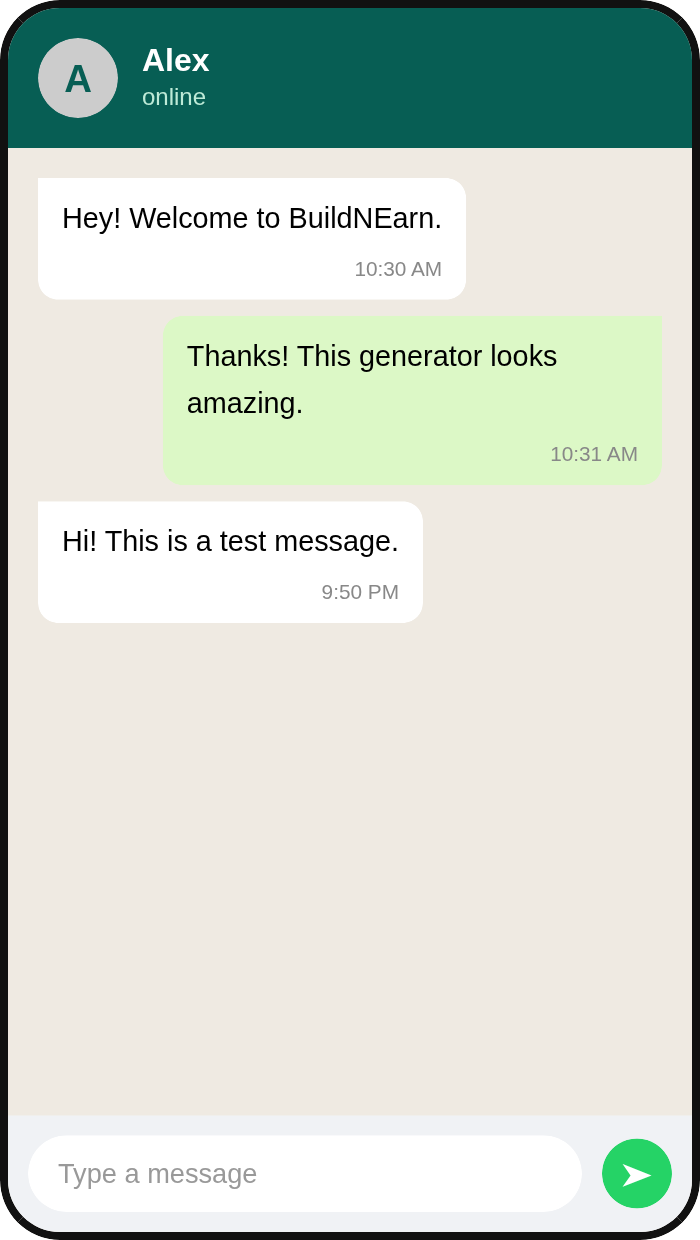
That is the whole process. Most chats take less than a minute from opening the tool to downloading the image.
How to make your fake chat look realistic
A fake chat only works if it reads like a real one. A few small things make a big difference:
- Keep messages short. Real WhatsApp messages are usually one or two lines, not paragraphs. Break a long thought into two or three short messages instead of one big block.
- Use realistic timing. Give the conversation a natural flow — a message, a short pause, then a reply — instead of ten messages all stamped with the same minute.
- Match the tone to the person. A chat with a friend sounds different from a chat with a colleague. Use the words, spelling and emoji that person would actually use.
- Do not overdo it. One or two emoji per message look natural; a wall of emoji does not.
- Check the preview before downloading. Read the whole conversation once in the live preview. A typo or a message on the wrong side is easy to spot there and harder to fix after download.
What you can use it for
The tool is made for creative work: funny conversations and memes, storytelling and video content, social media posts, UI mockups and design work, and marketing visuals. Because the finished image is a standard PNG, you can use it in a video editor, a presentation, or any social app.
What it cannot do — and what you should not do with it
This is important, and the tool is clear about it. The generator only creates an image of a WhatsApp-style conversation. It does not connect to WhatsApp, it does not send a message to anyone, and nobody on the other side receives anything.
Use it for entertainment, parody, design and creative content only. Do not use a fake chat to mislead people, to pretend a conversation happened when it did not, or to fake evidence in an argument, a dispute or a scam. A joke that everyone is in on is fine; a screenshot presented as real proof is not.
If you want to message someone on WhatsApp for real without sharing your number, that is a different problem — read our guide on how to reserve a username on WhatsApp and keep your phone number private. And if you want a real clickable WhatsApp link for your profile or business, the free WhatsApp Link Generator builds one in seconds.
Frequently asked questions
Is creating a fake WhatsApp chat free?
Yes. The Fake WhatsApp Chat Generator is completely free, with no sign-up and no app to download. It runs in your browser, with no sign-up and no app to download.
Do I need to install an app?
No. Everything works online in your browser, on desktop and on mobile.
Can I use the screenshots I create?
Yes, for entertainment, memes, stories, UI mockups and design work. Do not use fake chats to mislead people or to pretend a conversation happened when it did not.
Does it send a real WhatsApp message?
No. This tool only creates an image of a WhatsApp-style conversation. It does not connect to WhatsApp and it does not send messages to anyone.
Can I edit the chat after downloading it?
The downloaded file is a PNG image, so you cannot edit the text inside it. If you need a change, go back to the generator, fix the message and download it again — it takes seconds.
Bottom line
A fake WhatsApp chat takes less than a minute to make: open the free generator, set the contact, add your messages left and right, and download the PNG. Keep it short, keep it realistic, and keep it honest — use it for memes, stories and mockups, never to mislead anyone.