
Changing the name of your Facebook Page is a simple process, and you can do it directly from your Facebook settings. Whether you are rebranding your business, updating your content theme, or correcting an old page name, Facebook gives you the option to request a name change in just a few steps.
In this guide, I’ll show you exactly how to edit or change the name of your Facebook Page.
Step 1: Open Your Facebook Page
First, go to the Facebook Page you want to update. In this example, the page name is Pips Cartoon Adventure, and we want to change it to a new name.
Once you are on the page, make sure you are logged into the Facebook profile that has admin access to the page.
Step 2: Go to Settings and Privacy
Next, click on your account icon in the top corner of Facebook. From the menu, select Settings and Privacy, then click on Settings.
This will take you to the main settings area where you can manage your Facebook profile and page options.
Get 20% discount on your hosting plan.
Step 3: Find Page Setup
On the sidebar menu, you will see several different options. Scroll down until you find the section called Audience and Visibility. Under that section, click on Page Setup.
This is where Facebook allows you to manage important page details, including the name of your page.
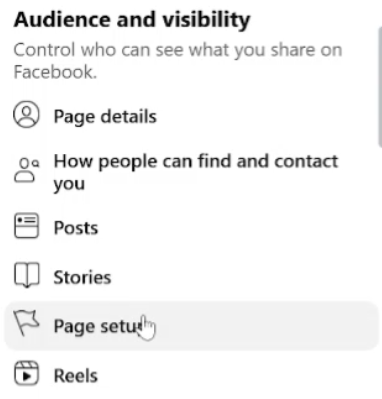
Step 4: Edit Your Facebook Page Name
Inside the Page Setup section, look for the option labeled Name. Click on Name, then select Edit. Now you can type the new name you want for your Facebook Page. For example, instead of using Pips Cartoon Adventure, you can rename the page to Horror with Sam. After typing the new page name, click Review Change.
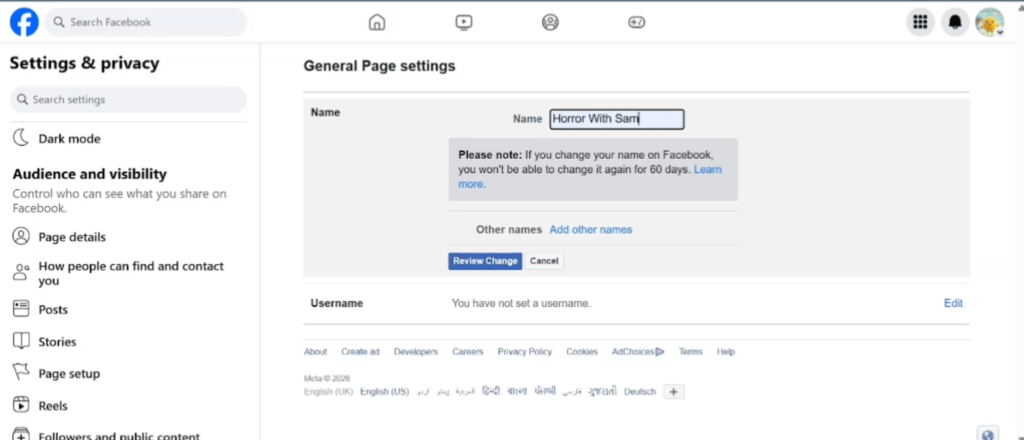
Step 5: Enter Your Facebook Password
Facebook will ask you to enter your password before submitting the name change request. This is the password for your Facebook profile, not a separate password for the Facebook Page. After entering your password, click Request Change.
Also read: How to Deactivate a Facebook Page: Step-by-Step Guide
Step 6: Refresh and Check the Updated Page Name
Once you submit the request, wait a few moments for Facebook to process the change. Sometimes the new name may not appear immediately.
Refresh the page, then check your main Facebook Page profile again. You should now see the updated name displayed on your page. In this example, the page name changes from Pips Cartoon Adventure to Horror with Sam.
Final Thoughts
That’s how you can change or update the name of your Facebook Page. The process is quick and easy as long as you have admin access to the page and the new name follows Facebook’s page name guidelines.
If your new name does not appear right away, refresh the page or wait a little longer for Facebook to update it across your profile.
Frequently Asked Questions
Can I change my Facebook Page name anytime?
Yes, you can request to change your Facebook Page name, but Facebook may review the change before approving it.
Do I need admin access to change a Facebook Page name?
Yes. You must have admin access to the Facebook Page in order to change or request a new page name.
Why is my Facebook Page name not changing immediately?
Sometimes Facebook needs a few moments to process the update. Refresh the page and check again. In some cases, Facebook may also review the request before showing the new name.
Can Facebook reject my page name change?
Yes. Facebook may reject a page name change if the new name is misleading, violates guidelines, or does not match the purpose of the page.