

Your YouTube watch history is the list of videos you have watched while signed in. In this guide, you will learn how to check and delete YouTube watch history on desktop and mobile, find one video again, delete a single video or everything, and stop YouTube saving it at all.

What Is YouTube Watch History, and What It Changes
Watch history is the record YouTube keeps of the videos you watch while you are signed in to your Google account. It powers your recommendations: deleting some or all of it means YouTube stops basing suggestions on those videos.
Your history syncs across every device signed in to the same Google account. YouTube does not keep it per device, so clearing it on your phone also clears it on your computer.
How to Check Your Watch History on a Computer
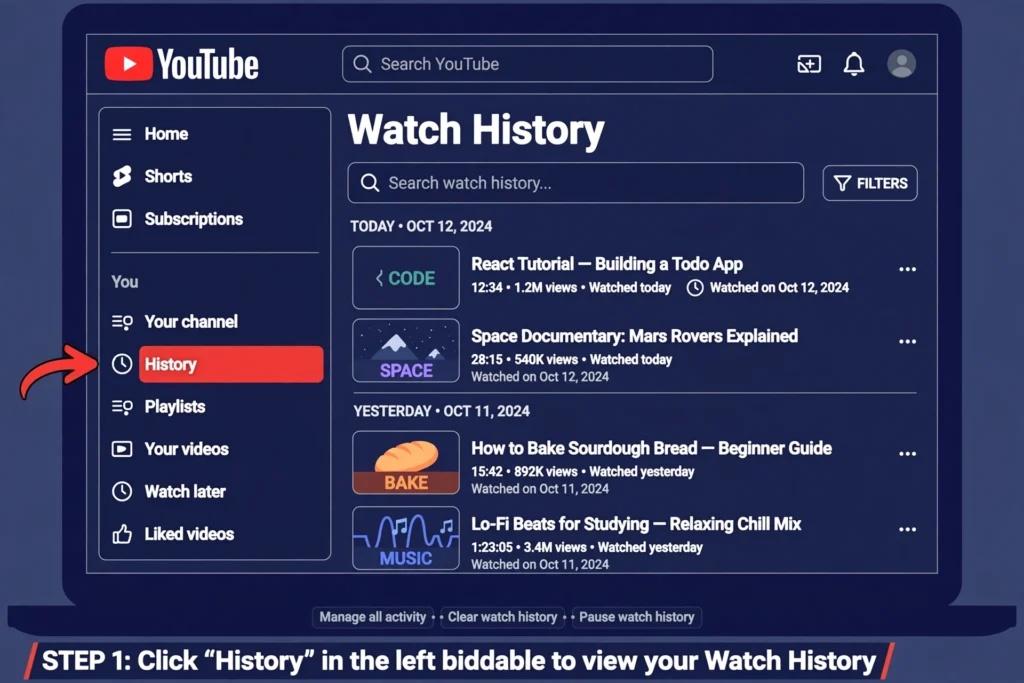
Sign in to the right Google account, then go straight to youtube.com/feed/history — or click the three-line menu (top left) and choose History in the left sidebar. You can also open it from My Activity: go to myactivity.google.com, click YouTube History, then click Manage history.
Videos appear newest first, grouped by day. Use the search box on the History page to find a specific video by title.
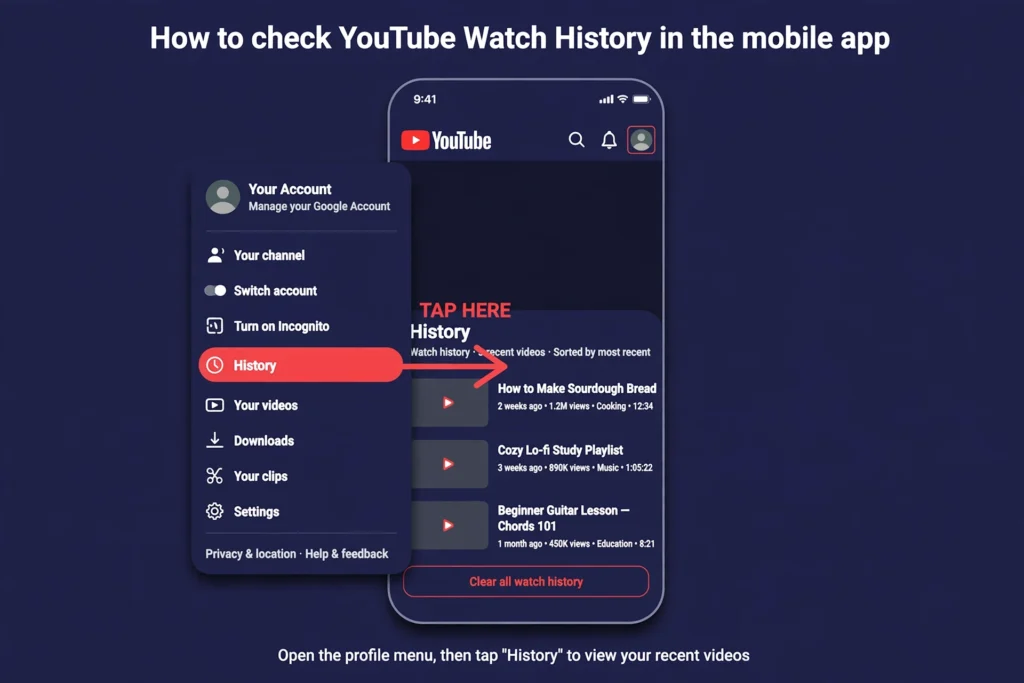
How to Check It on the YouTube App (Android and iPhone)
On the current YouTube app, the path YouTube Help gives is the same on Android and iPhone: open the app, sign in, tap your profile photo (top right), tap Settings, then tap Manage all history. That opens your watch history, where you can view, search, pause, delete and manage it.
On some app versions you may also see History directly — under your profile photo, or under the You tab (bottom right) > History > View All. In older versions of the app it was under Library. These open the same list, but the exact menu path varies by app version, so if you do not see History in one place, use the Settings > Manage all history path above.
Scroll down — the list is grouped by day, newest at the top. In a mobile browser instead of the app, youtube.com/feed/history loads the same list.
How to Find a Specific Video
Search the History page by title, or open My Activity (myactivity.google.com) > YouTube History and filter by date. There is no way to see watch history without signing in — YouTube only shows it for your own account. In fact, the History page itself says so while you are signed out: “Watch history isn’t viewable when signed out.”
How to Delete From Your Watch History
Delete one video
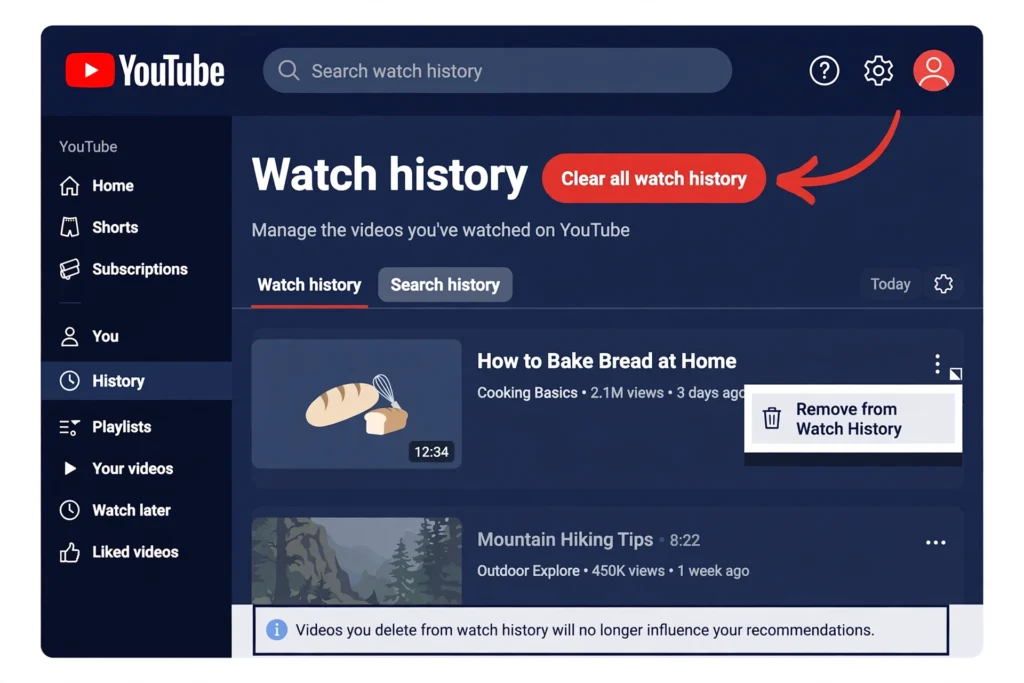
On a computer, hover over the video on the History page and click the X. In the app, open Manage all history and tap the X next to the video.
Delete a day or a date range
In My Activity > YouTube History > Manage history, click Delete and pick a time range — today, a custom range, or all time.
Delete everything at once
On a computer, go to History > Clear all watch history and confirm. In the app, go to your profile photo > Settings > Manage all history, tap Delete, and choose the range — including all time.
Warning: deleting watch history for a time range also deletes your search history for the same period, and deleted history cannot be recovered.
How to Pause Your Watch History (Stop Saving, Keep What Is There)
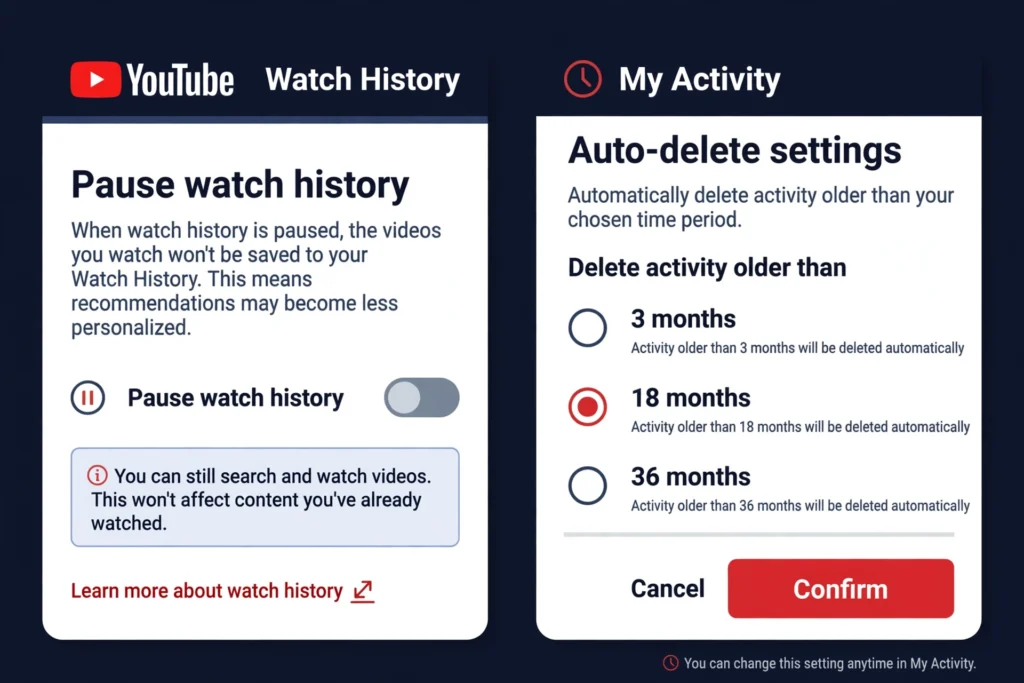
On a computer, go to the History page and click Pause watch history, then Pause. To resume, the same place reads Turn on watch history.
In the app, go to your profile photo > Settings > Manage all history, open the Controls tab, and turn off “Include the YouTube videos you watch”. You can also pause from My Activity: open the Controls tab (left sidebar) and choose Turn off.
Pausing does not erase anything already recorded, but YouTube never adds videos you watch while history is off to your history or recommendations.
How to Set Auto-Delete (Hands-Off Clean-Up)
Go to My Activity > YouTube History > Manage history > Auto-delete, select your preferred time range — My Activity shows the time-range choices when you choose Auto-delete — then click Next > Confirm. (YouTube Help does not list the month options on its help page, so check the choices in My Activity.)
To stop it later, return to Auto-delete and choose Don’t auto-delete activity. See YouTube Help: View, delete, or turn on or off watch history for the official steps.
Watch History vs Search History
Watch history and search history are two separate lists under the same Google account. The Delete button in Manage history wipes both for the period you pick. History watched while signed out is separate again: on YouTube while signed out, the History page offers Pause watch history or Clear all watch history for that browser only, and in the app, Settings > History & privacy lets you clear watch history for that device.
Why Your Watch History Looks Empty or Missing
Check these in order: you are signed in to the wrong Google account; history is paused; auto-delete removed older videos; you were signed out when you watched them; or the videos were deleted. Deleted history cannot be restored.
FAQs About How to Check and Delete YouTube Watch History
1. Can anyone else see my watch history?
No — only you, on your signed-in account.
2. Does deleting history delete the videos?
No — it only removes them from your history and from recommendations.
3. Does clearing history on my phone clear it on my computer?
Yes, if both use the same Google account — it syncs.
4. How far back does YouTube keep watch history?
As far back as you let it — until you delete it or auto-delete removes it.
How to Check and Delete YouTube Watch History
Now you know how to check and delete YouTube watch history on a computer and in the app. Delete one video for a quick tidy-up, clear everything for a fresh start, or pause history and let auto-delete handle it for you. Next, open My Activity and set your auto-delete preference, so your history stays under control without another manual clear-out.
Related Posts
Also read: How to Check and Delete Your TikTok Watch History and How to Check and Delete Your Instagram Watch History.



Pingback: Fake Blogger Apps Are Dangerous — How to Spot the Real One