
Most TikTok users scroll through hundreds of videos every day without realizing the app quietly keeps track of everything they watch. Whether you want to revisit a video you saw earlier or clean up your watch history entirely, TikTok gives you full control over it — you just need to know where to look.
In this guide, I’ll walk you through exactly how to find your TikTok watch history and delete individual videos or clear the whole thing at once.
Get 20% discount on your web hosting plan.
Step 1: Open Your Profile
Start by opening the TikTok app and navigating to your profile page by tapping the profile icon in the bottom right corner of the screen.
Step 2: Access the Activity Center
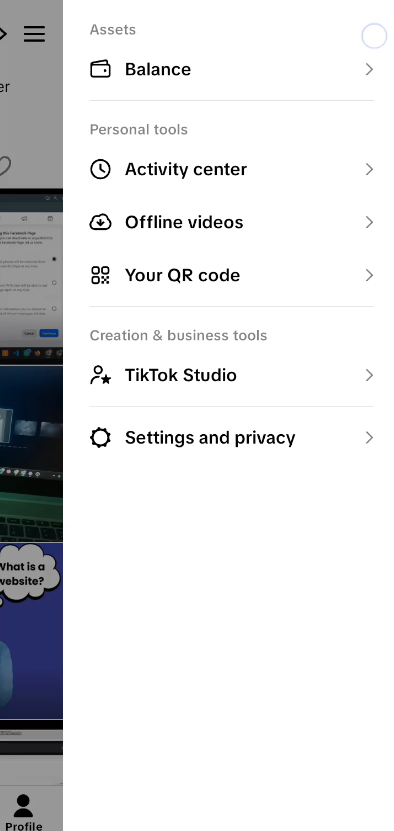
Once you’re on your profile, tap the three horizontal lines in the top right corner to open the settings menu. Under the Personal Tools section, you’ll see an option called Activity Center. Tap on it.
Step 3: Find Your Watch History
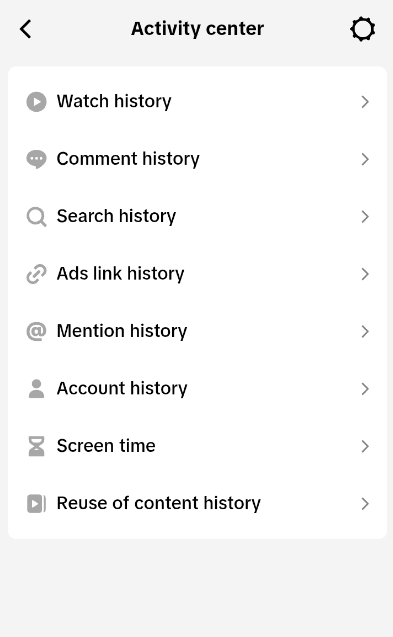
Inside the Activity Center, you’ll see a list of options. At the very top of this list, tap on Watch History. This will open a feed of all the videos you’ve recently watched on TikTok.
Step 4: Delete Individual Videos
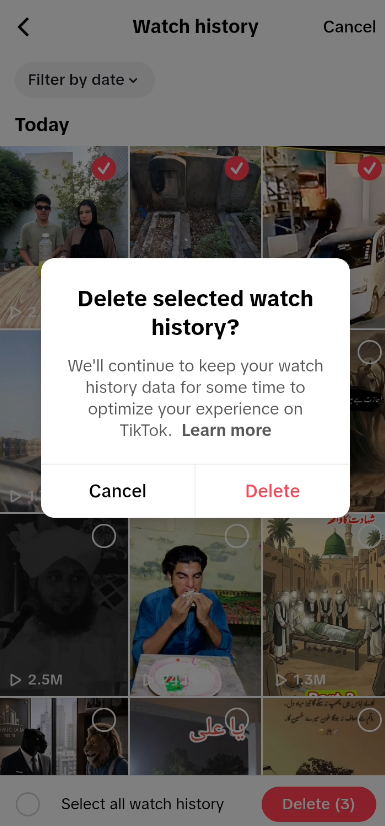
If you want to remove specific videos from your watch history, tap the three dots in the top right corner of the Watch History page. Then tap Select and choose the videos you want to delete. Once you’ve made your selection, tap Delete, then confirm by tapping Delete again. Those videos will be removed from your history immediately.
Step 5: Clear Your Entire TikTok Watch History
If you’d rather wipe the slate clean, tap Select and then choose Select All Watch History to highlight every video at once. After that, tap Delete and confirm. Your entire TikTok watch history will be cleared in one go.
Also read: How to Change Your Facebook Page Name and Deactivate a Facebook Page
Why You Might Want to Clear Your TikTok Watch History
There are a few practical reasons to manage your TikTok watch history. Clearing it can help reset your TikTok algorithm if your For You Page has started showing content that doesn’t interest you anymore. It’s also a good privacy habit, especially if you share your device with others or simply prefer not to have a detailed log of your viewing activity stored on the app.
Frequently Asked Questions (FAQs)
1. Does TikTok save my watch history automatically?
Yes. TikTok automatically records every video you watch in your Watch History. You can find this under Activity Center in your profile settings.
2. How far back does TikTok watch history go?
TikTok shows your recently watched videos, but the exact duration may vary depending on your account activity and app updates. It doesn’t necessarily store your entire viewing history from the day you joined.
3. Will deleting my TikTok watch history affect my For You Page?
Yes, it can. TikTok uses your watch history to personalize your For You Page. Clearing it may temporarily reset your content recommendations until the algorithm learns your preferences again through new interactions.
4. Can I recover videos I deleted from my watch history?
No. Once you delete videos from your TikTok watch history, they cannot be recovered. The deletion is permanent, so make sure you’ve noted any videos you might want to revisit before clearing them.
5. Does clearing watch history delete the videos from TikTok?
No. Deleting a video from your watch history only removes it from your personal record. The original video remains on TikTok and is completely unaffected.
6. Can other people see my TikTok watch history?
No. Your TikTok watch history is private and only visible to you through your own account. Other users cannot see which videos you’ve watched.
7. Is there a way to pause or turn off TikTok watch history?
As of now, TikTok does not offer an option to pause or disable watch history recording. The only way to manage it is by manually deleting videos or clearing the entire history when needed.
8. Does this work the same on both Android and iPhone?
Yes. The steps to check and delete your TikTok watch history are the same on both Android and iPhone, as the app interface is consistent across both platforms.