
Managing your Facebook presence involves more than just posting content. At some point, you might need to change your Facebook name or temporarily deactivate your Facebook page or account. Whatever the case, this complete guide covers both tasks in simple, easy-to-follow steps.
Get 20% discount on your web hosting plan.
Part 1: How to Change Your Facebook Page Name
Renaming a Facebook page is useful when you’re rebranding, pivoting your niche, or simply feel the current name no longer represents what your page is about. Here’s how to do it.
Step 1: Switch to Your Facebook Page
Start by logging into Facebook and switching to the page you want to rename. Click on your account icon in the top right corner and select the page from the list.
Step 2: Open Page Settings
Once you’re on your page, click on the account icon again. From the dropdown, go to Settings & Privacy, then click on Settings.
Step 3: Navigate to Page Setup
On the left sidebar, scroll past the performance options and look for Audience and Visibility. Click on it, then select Page Setup from the available options.
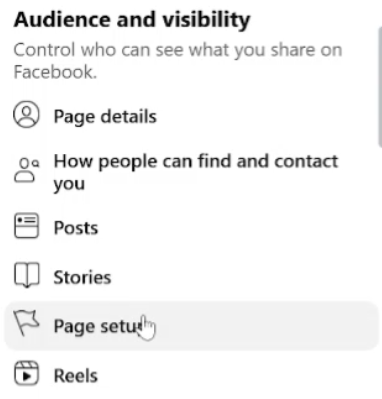
Step 4: Edit the Page Name
Inside Page Setup, you’ll see an option labeled Name. Click on it, then click Edit. Type in your new page name, and when you’re happy with it, click Review Changes.
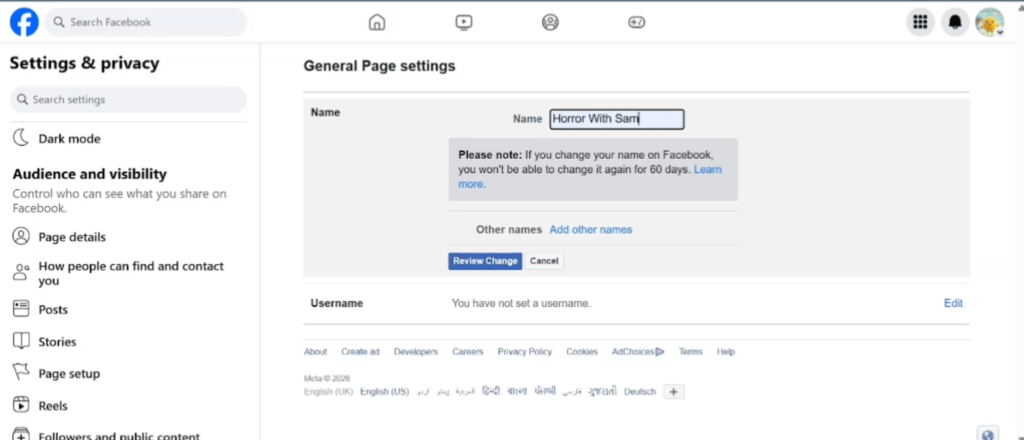
Step 5: Confirm with Your Password
Facebook will ask you to enter your Facebook profile password (not a page-specific password) to verify the change. Once you’ve entered it, click Request Change.
Give it a moment to process. After a quick refresh of the page, your new page name will be live and visible across your entire Facebook profile and page.
Also read: How to Reserve a Username on WhatsApp and Keep Your Phone Number Private
Part 2: How to Deactivate a Facebook Page
If you want to put your Facebook page on pause without permanently deleting it, deactivating is the way to go. A deactivated page is hidden from the public but can be reactivated anytime you’re ready to come back.
Step 1: Log Into the Page You Want to Deactivate
Make sure you’re switched into the specific Facebook page you want to deactivate before proceeding.
Step 2: Open Settings
Click on the account icon and go to Settings & Privacy, then click Settings.
Step 3: Find Access and Control
On the left sidebar, scroll down until you reach the Your Information section. Inside, you’ll find an option called Access and Control — click on it.
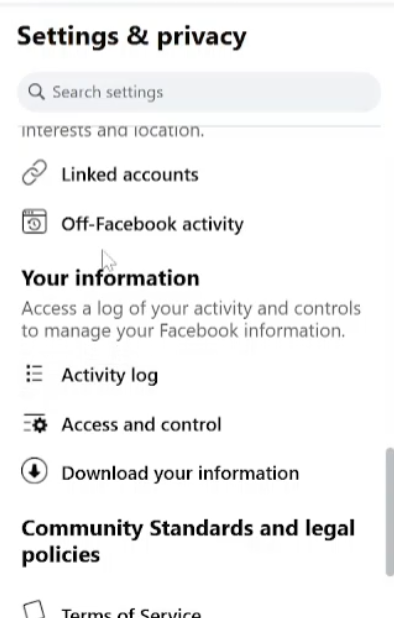
Step 4: Choose to Deactivate
This section will show you three options: Deactivate, Unpublish, and Delete. The process is similar for all three, but for this guide, we’re selecting Deactivation. Click on it, then hit Continue.
Step 5: Enter Your Password and Choose a Reason
Enter your Facebook profile password and click Continue. Facebook will then ask you to select a reason for deactivating the page. Choose whatever fits your situation best — for example, “This is temporary, I’ll be back.”
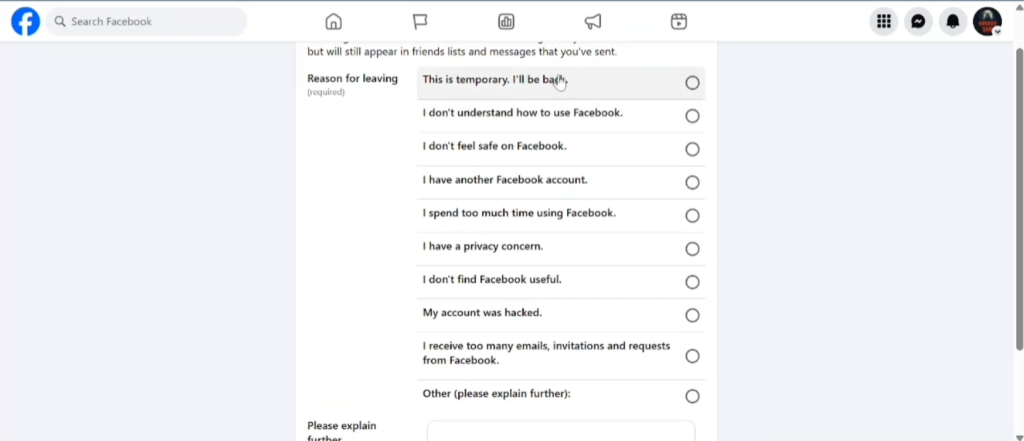
Facebook may suggest simply logging out instead. If you want to fully deactivate the page, close that suggestion and click Deactivate, then confirm by clicking Deactivate Now.
Step 6: Done
After a brief moment, Facebook will redirect you back to your main profile. Your page is now deactivated and hidden from public view until you choose to reactivate it.
Final Thoughts
Whether you’re giving your Facebook page a fresh identity with a new name or stepping back by deactivating it, Facebook makes both processes fairly straightforward once you know where to look. The key is navigating through the right settings, which can feel buried at first but becomes second nature once you’ve done it once.
Frequently Asked Questions (FAQs)
1. How long does it take for a Facebook page name change to go live?
In most cases, the name change takes effect almost immediately after you submit the request and refresh the page. However, Facebook may take up to 3 days to review and approve the change in some situations.
2. Can I change my Facebook page name more than once?
Yes, but Facebook limits how frequently you can change your page name. If you’ve recently made a change, you may need to wait before making another one.
3. Will my followers be notified when I change my page name?
Facebook may notify some of your followers about the name change, especially if your page has a large following. This is something to keep in mind if you’re doing a quiet rebrand.
4. What’s the difference between deactivating, unpublishing, and deleting a Facebook page?
Deactivating hides your page from the public temporarily — you can reactivate it anytime. Unpublishing also hides the page but keeps it accessible to admins. Deleting is permanent and cannot be undone after a short grace period.
5. Can I reactivate a deactivated Facebook page?
Yes. To reactivate your page, simply log back into Facebook, switch to the deactivated page, and follow the prompts to restore it. Your content and followers will still be intact.
6. Do I need admin access to change the page name or deactivate a page?
Yes. You must be the page admin or have a role with sufficient permissions to make these changes. Regular editors or moderators cannot rename or deactivate a page.
7. Will deactivating a page delete my posts and followers?
No. Deactivating a page does not delete any content or remove your followers. Everything remains saved and will be restored exactly as it was when you reactivate the page.