
If you’ve ever scrolled through Instagram for way longer than you meant to, then thought “wait, does Instagram even keep track of what I watched?” — you’re not alone. A lot of people don’t realize that Instagram quietly logs almost everything you do on the app: the reels you watched, the posts you liked, the comments you left, and even the posts you’ve deleted.
The good news is that Instagram actually gives you full control over all of this. You can review it, clean it up, or wipe it out completely, and none of it requires any third-party app or sketchy browser extension. In this guide, I’ll walk you through exactly how to do it, step by step, the same way I show it in my tutorials.
We’ll cover:
- Does Instagram have watch history, and how to look at watch history on Instagram
- How to delete Instagram watch history at once
- How to check and manage your likes and comments
- How to erase search history on Instagram
- How to mass delete Instagram posts (and how to see deleted Instagram posts before they’re gone for good)
- Whether you can recover deleted Instagram posts
Let’s get into it.
Does Instagram Have Watch History?
Yes — Instagram absolutely has a watch history feature, and it logs pretty much every reel and video you’ve watched, whether you meant to keep track of it or not. It’s tucked away inside your account settings, so most users never even stumble across it. But once you know where to look, checking it takes less than a minute.
Also read: How to Check and Delete Your TikTok Watch History
How to Look at Watch History on Instagram
Here’s exactly how to find it:
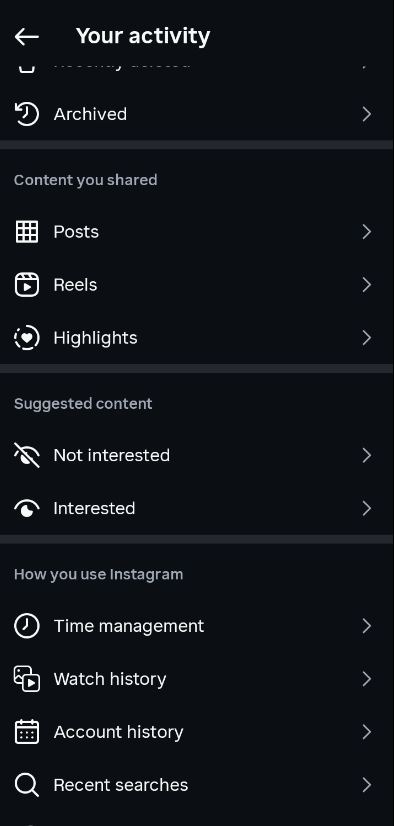
- Open your Instagram profile and tap the three lines (menu icon) in the top right corner.
- Tap on Your Activity.
- Scroll down and tap Watch History.
- You’ll now see a full list of every video or reel you’ve watched recently.
That’s it — no hidden menus, no settings you need to enable in advance. It’s just sitting there under your activity section the whole time.
How to Delete Instagram Watch History at Once
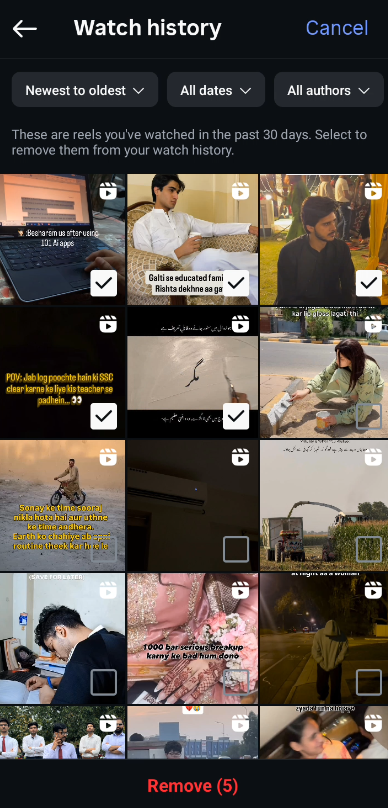
Once you’re inside your watch history, clearing it out is simple:
- From the Watch History screen, tap Select in the top corner.
- Choose the videos you want to remove, or tap to select all of them at once.
- Tap Remove, then confirm by tapping Remove again.
Once you confirm, those videos disappear from your watch history immediately. This is a great habit to build if you share your phone with someone, use a borrowed or family account, or just don’t like the idea of Instagram (or anyone who picks up your phone) knowing exactly what you’ve been watching.
How to Check and Manage Your Likes and Comments
Watch history isn’t the only thing Instagram tracks. It also keeps a running log of every post you’ve liked and every comment you’ve left — which is genuinely useful if you want to clean up your digital footprint or just remember something you liked a while back.
To check your liked posts:
- Tap the three lines menu, then go to Your Activity.
- Under the Interactions section, tap Likes.
- You’ll see every post you’ve liked in the past.
- To unlike something, tap Select, choose the post (or multiple posts), then tap Unlike and confirm.

To check your comments:
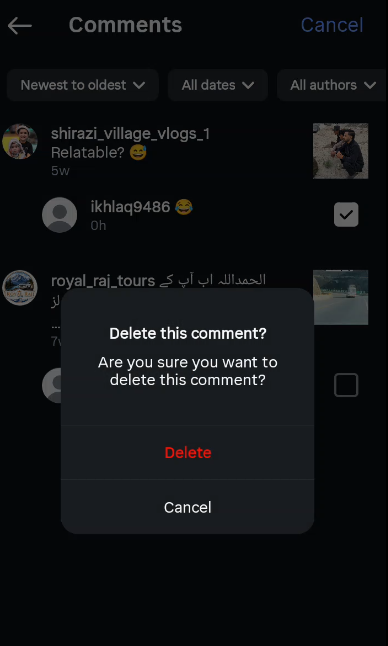
- In the same Interactions section, tap Comments.
- You’ll see a list of every comment you’ve left across Instagram.
- Select the comment(s) you want gone, tap delete, and confirm.
The comment will be removed both from your activity log and from the original post itself.
Get 20% discount on your web hosting plan.
How to Erase Search History on Instagram
Your search history works a lot like your watch history — Instagram remembers accounts and terms you’ve searched for, and it’s stored separately in your settings. If you’d rather Instagram not remind you (or anyone else using your phone) what you’ve been searching, you can clear it from the same Your Activity area under account settings by selecting your search history and removing it entirely. It’s a quick way to keep your account tidy, especially if you’re logging into Instagram on a shared or public device.
How to Mass Delete Instagram Posts
If you’re doing a profile clean-up — maybe rebranding, starting fresh, or just tired of old content — you don’t have to delete posts one by one. Instagram lets you select and delete several posts in bulk:
- Open your profile and tap the three lines menu.
- Go to Your Activity.
- Scroll down to Content You Shared and tap Posts.
- You’ll see all the posts you’ve ever uploaded.
- Tap Select, choose the posts you want to delete, then tap Delete and confirm.
The exact same process works for reels too — just look for the Reels section instead of Posts under Content You Shared.
This is by far the fastest way to mass delete Instagram posts without tapping into each individual post’s three-dot menu and deleting them one at a time.
Can You Recover Deleted Instagram Posts?
Yes, at least for a limited time. Instagram doesn’t erase your deleted content immediately — it moves it into a Recently Deleted folder first, kind of like the recycle bin on your computer.
How to see deleted Instagram posts and recover them:
- Go to Your Activity.
- Tap Recently Deleted.
- You’ll see the posts and reels you deleted, along with how many days are left before they’re permanently removed.
- Select the post you want back and tap Restore.
Just keep in mind this recovery window doesn’t last forever, so if you deleted something by mistake, don’t wait too long before checking.
Also read: How to Change Your Facebook Page Name and Deactivate a Facebook Page
Why Managing Your Instagram Activity Actually Matters
A lot of people assume that once they scroll past a video or close the app, that’s the end of it. But between watch history, search history, likes, comments, and old posts, Instagram builds a pretty detailed picture of your activity over time. Regularly reviewing and clearing this out isn’t just about privacy — it also helps if you’re:
- Using a shared, family, or borrowed device
- Cleaning up your profile before a rebrand or fresh start
- Trying to reset Instagram’s recommendations by clearing your watch and search history
- Simply keeping your digital footprint a little more private
Final Thoughts
Instagram gives you more control over your own data than most people realize — you just have to know where to look. Whether you want to check your watch history, clean up old likes and comments, erase your search history, or mass delete posts you no longer want on your profile, it’s all doable in a few taps, directly from the app.
FAQs
Does Instagram have watch history?
Yes. Instagram tracks the reels and videos you watch, and you can view or clear this list anytime from Your Activity in settings.
How do I delete my Instagram watch history at once?
Go to Your Activity > Watch History, tap Select, choose all the videos (or specific ones), then tap Remove to confirm.
How can I look at my watch history on Instagram?
Tap the three-line menu on your profile, go to Your Activity, then tap Watch History to see everything you’ve recently watched.
How do I erase my search history on Instagram?
Head to Your Activity in your account settings, find your search history, and clear it from there.
Can you recover deleted Instagram posts?
Yes, within a limited window. Deleted posts and reels go to the Recently Deleted folder under Your Activity, where you can restore them before they’re permanently gone.
How do I mass delete Instagram posts?
Go to Your Activity > Content You Shared > Posts, tap Select, choose multiple posts, then tap Delete to remove them all at once.