
Gemini is now inside Gmail — and you do not need a paid Gemini account to turn it on. Once you connect Gemini to your Google Workspace, you can ask Gemini to compose emails for you, send them for you, adjust your calendar, schedule meetings, and work with your Google Docs and Drive. In this guide I will show you exactly how to connect Gemini to Gmail, step by step, and then how to use it to send an email.
What you need before you start
- A Google account — the same one you use for Gmail.
- Gemini open at gemini.google.com, signed in with that account.
- No paid Gemini plan is needed for the Google Workspace connection.
How to connect Gemini to Gmail
Step 1: Open Gemini settings
Go to gemini.google.com and sign in with the Google account you use for Gmail. Click the gear icon to open Settings.

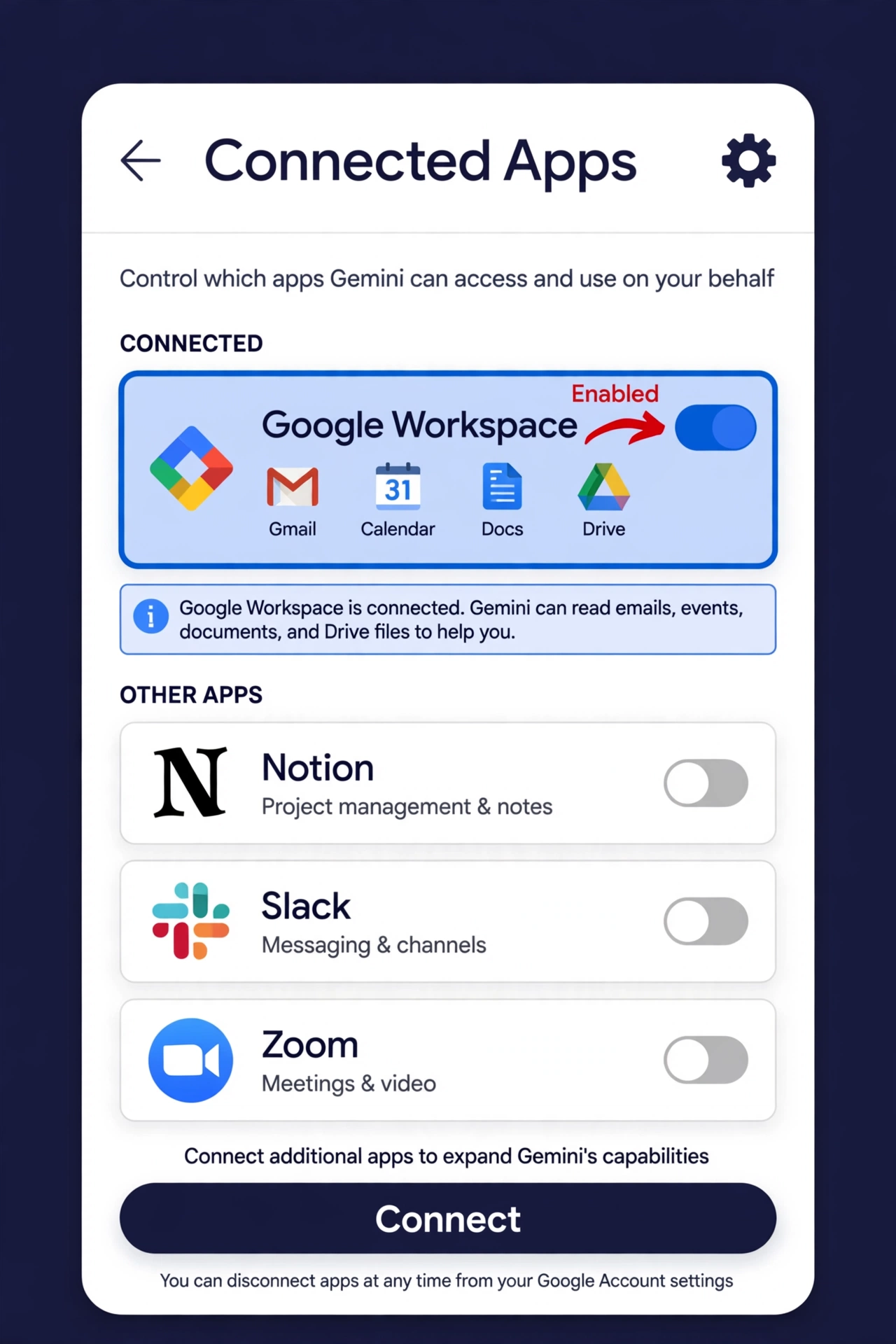
Step 2: Go to Personal Intelligence, then Connected Apps
In Settings, go to Personal Intelligence, then go to Connected Apps. Note: in the newest Gemini interface, the same list is under Customize > Connectors in the sidebar. If you do not see Personal Intelligence, look for Connectors there.
Step 3: Turn on Google Workspace and click Connect
Find Google Workspace in the Connected Apps list. Turn on its toggle, scroll down, and click Connect. That connects your Gemini account with your Google Workspace. From now on, Gemini can work with your Gmail, Google Calendar, Google Docs, Google Drive, Google Keep and Google Tasks.
How to use Gemini to send an email
Step 1: Start a new chat
Go to a new chat in Gemini and continue as normal.
Step 2: Ask Gemini to send the email
Ask Gemini to send an email to a specific person — for example, an email about a project deadline. Be specific: who it is for, what it is about, and what you want it to say. Gemini will draft the email and show it to you. It will mention the email address, the project deadline and the subject, and compose the full email for you.

Step 3: Review it, then click Send
You do not have to send it straight away. Review the draft first, and ask Gemini to make changes if you want anything different. When you are happy with it, click Send. Gemini will send the email to that person automatically. You can check the recipient’s inbox to confirm it arrived.

What else Gemini can do once it is connected
- Send and compose emails in Gmail, and adjust a draft before sending it.
- Schedule meetings through Google Calendar.
- Create files and add them to Google Drive or Google Docs.
- Search and summarise your Gmail, Docs and Drive when you ask it to find something.
Things to know
- Keep Activity must be on in Gemini for Connected Apps to work.
- Smart features in other Google products must be turned on in your Gmail settings.
- For work or school accounts, your administrator must allow apps to connect to Gemini, and a qualifying Google Workspace edition is required.
- Gemini can make mistakes, so always review an email before you click Send, and open the emails and files it mentions before you act on them.
FAQs
Do I need a paid Gemini account to connect it to Gmail?
No. You do not need a paid Gemini account to connect Gemini to your Google Workspace and use it with Gmail.
Can Gemini send emails by itself?
Yes, once Google Workspace is connected, Gemini can send an email for you when you ask it to — but review the draft first and click Send yourself, so nothing goes out that you have not checked.
Can Gemini schedule meetings too?
Yes. With the same connection, you can ask Gemini to schedule meetings using Google Calendar.
How do I disconnect Gemini from Gmail?
Go back to Settings > Personal Intelligence > Connected Apps (or Customize > Connectors), find Google Workspace, and turn the connection off.
Connect Gmail with other AI tools
- How to Connect ChatGPT to Gmail (2026) — Send, Read & Manage Emails with AI
- How to Connect Claude AI to Gmail and Send Emails for Free
Conclusion
That is how you connect Gemini to Gmail for free: open Gemini settings, go to Personal Intelligence and Connected Apps, turn on Google Workspace, and click Connect. After that, Gemini can write and send your emails, schedule meetings and work with your Docs and Drive. Try it with one email first — ask Gemini to draft it, review it, and send it — and you will see how much time it saves.
Also read: How to Connect Claude AI to Gmail, How to Connect ChatGPT to Outlook and Send Emails Using AI for Free, and How to Connect Canva with Google Gemini and Edit AI Images Instantly.
Watch the video
Watch the video: Gemini Is Now Inside Your Gmail, Here’s How to Turn It On


Pingback: Fake Blogger Apps Are Dangerous — How to Spot the Real One
Pingback: How to Remove a Domain from Shopify (2026 Guide)
Pingback: How to Connect Claude to Webflow (Free) — Build Websites with Prompts
Pingback: How to Connect ChatGPT to Gmail (2026) — Step by Step
Pingback: How to Connect Claude AI to Hostinger Email (2026 Guide)