
Your Facebook Activity Log is the record of everything you have done on Facebook — your posts, likes, comments, searches, tags and logins. If you want to find an old post, check what you reacted to, or clean up something you shared years ago, the Activity Log is where to look. Here is how to check your Facebook Activity Log on a computer and in the Facebook app, how to filter it, and how to archive or delete things from it.
Steps verified on 19 November 2026 against the Facebook Help Centre article “How to use activity log on Facebook to manage content”. Facebook moves its menus from time to time, so if a label looks slightly different on your screen, follow the same route — the names below are the ones Facebook Help Centre uses today.
What is the Facebook Activity Log?
The Activity Log is a chronological list of your own activity on Facebook. It shows the posts you shared, the posts you were tagged in, your comments and reactions, the videos you watched, the pages you liked, and the searches you made. You can filter it by type and by date, and from it you can hide, archive or delete individual items.
Two things it does not do: you cannot see someone else’s Activity Log — only your own — and it is not the same as Off-Facebook Activity, which is covered near the end of this guide.
How to check Facebook Activity Log on a computer
On a desktop or laptop, the route is short:
- Click your profile picture at the top right of Facebook.
- Select Settings & Privacy, then click Activity Log.
- On the left, click a category to see that type of activity — for example Your Facebook activity, Comments and reactions, or Posts. In some versions this list is labelled Activity history.
- Use the Filters at the top to narrow the list by date and by activity type, for example posts, likes and reactions, comments, searches or tags.
That is the whole desktop path: profile picture (top right) > Settings & Privacy > Activity Log. Once you are in, everything is listed in date order, newest first, and you can work through it one item at a time.
How to check Facebook Activity Log on the Facebook app (Android / iPhone)
The app puts the Activity Log in the same place, under your profile menu:
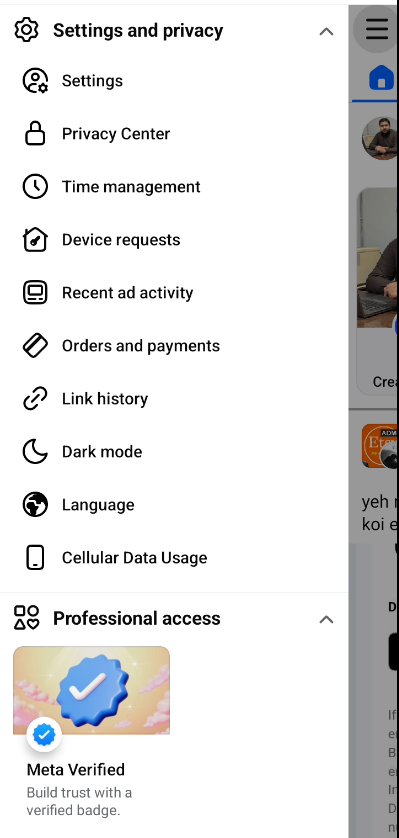
- Tap Menu in the Facebook app.
- Tap Options below your profile picture, then tap Activity Log. On some versions the direct route is Menu > Settings & Privacy > Activity Log — both lead to the same screen.
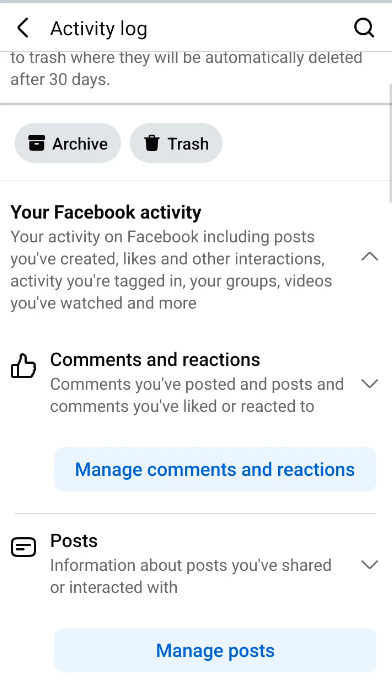
- Scroll down and tap the content you want to review, for example Manage Your Posts to review things you posted.
- Tap Filters at the top to filter by category, date or people.
How to find a specific thing in the log
If you are looking for one post, comment or search, do not scroll through years of activity. Use the tools Facebook gives you inside the log:
- Filter by type: choose posts, likes and reactions, comments, searches or tags to cut the list down to the kind of activity you want.
- Filter by date: narrow the list to a year or a month. If you cannot find an old post, check that the date filter is not hiding it — clear the filters and search again.
- Search within the log: use the search box at the top of the Activity Log screen to look for a person, page or word.
- Check the category: a liked video is under watch history and reactions, not under your posts, so look in the right section first.
Login and device activity is separate from the Activity Log. To see where you are logged in, go to Settings > Security and login > Where you’re logged in, rather than searching the log itself.
How to archive or delete from the log (Manage Activity)
From the Activity Log you can hide, archive or delete the things you shared. Tap or click Options on the right of an item, then choose Hide from profile, Delete, Move to archive or Move to trash. The exact options depend on the type of content.
Manage Activity is the bulk version of this: in the Facebook app on Android and iPhone (and in Facebook Lite) you can select several posts, photos or videos at once, then Archive them or move them to Trash. On a computer, archive, trash and delete work one item at a time from the Activity Log.
The Trash rule to remember is 30 days. When you move content to Trash, it stays there for 30 days and is visible only to you. During those 30 days you can restore it to where you originally posted it, or move it to your Archive instead. After 30 days Facebook deletes it automatically and it cannot be restored. Archive, by contrast, keeps items indefinitely and visible only to you. This 30-day Trash period is confirmed in Facebook Help Centre, “How to use activity log on Facebook to manage content”.
Activity Log vs Off-Facebook Activity
These two screens sound similar and are easy to mix up. The Activity Log is what you did on Facebook. Off-Facebook Activity is what apps and websites outside Facebook sent to Facebook about you. It is a different screen, found under Settings > Your Facebook Information. If you want to review your own posts, likes and comments, use the Activity Log; if you want to see which outside apps and sites shared data with Facebook, use Off-Facebook Activity.
Frequently asked questions
Can I see someone else’s Activity Log?
No. You can only see your own Activity Log. Other people’s activity is private to them.
Can I download my activity?
Not from the log directly. For a full copy, use Settings > Download Your Information, which lets you download your Facebook data.
Why can’t I find an old post?
It may have been deleted or archived, or it may be outside the filter or date range you set. Clear the filters, check the right category (posts, reactions, watch history), and search again.
How long do things stay in Trash?
30 days. After that Facebook deletes them automatically and they cannot be restored, so restore anything you want to keep before the 30 days are up.
Related Facebook guides
- How to Deactivate a Facebook Page: Step-by-Step Guide
- How to Change/Edit the Name of Your Facebook Page
- How to Change Your Facebook Page Name and Deactivate a Facebook Page
- How to Unlink Apps and Websites From Your Facebook Account
- How to Find Your Facebook Activity Log, Manage Reactions, Comments, and Watch History — our earlier guide to the same screen, focused on reactions, comments and watch history.
That is how to check Facebook activity log on desktop and mobile in 2026. Open it once, use the filters to find what you need, and use Archive for things you want to keep privately and Trash — with its 30-day window — for things you want gone.